If you have the Microsoft 365 Copilot license, Copilot is available across several parts of your daily communication workflow. It can help with email messages, calendar decisions, and Teams meetings, depending on the app version and feature availability. Some options are newer, and others are easy to miss if you do not know where to look.
Prioritizing what's in your inbox
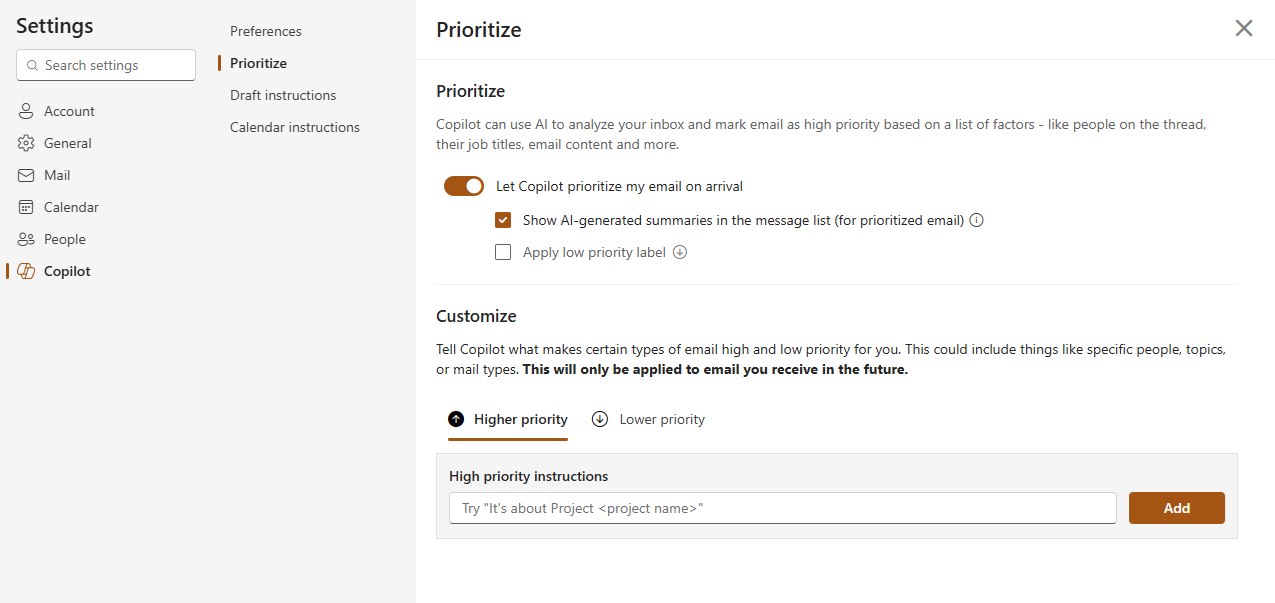
Copilot can review incoming email and mark messages as high, normal, or low priority based on details like who sent the message and what it is about. It can also replace the first line of a prioritized message with a short summary so you can get the gist without opening it first.
To use it, open Outlook settings, select Copilot, then select Prioritize and turn on inbox prioritization. From there, you can add instructions for what Copilot should treat as important. For example, "emails about [project name] are always high priority" teaches Copilot how to read your inbox.
One thing to keep in mind: this applies to new messages after you turn the feature on. Anything already in your inbox stays as-is.
Setting draft preferences ahead of time
Draft instructions let you tell Copilot how you like your emails to sound before you start writing. You can set preferences such as tone and length, and Copilot uses them as a starting point whenever it drafts for you.
To find this setting, open Outlook settings, select Copilot, then look for Draft instructions.

Copilot can help with email drafting in a couple of ways. In Outlook on the web, the Copilot sidebar lets you ask questions about a message or start a reply without leaving your inbox. You can also draft from Microsoft 365 Copilot directly. Describe what you need, and Copilot opens a compose form right in the chat. You can refine it there or click "Edit in Outlook" to move it over when it's ready. The screenshot below shows what that looks like, including suggested next steps like adding action items from a meeting or using it with the Copilot Researcher agent.

Review what it drafts before you send. Copilot works from the context it can see, and you know the full picture.
Calendar instructions
Calendar instructions let you write ongoing rules for routine calendar decisions. For example, you can ask Copilot to accept meetings from a specific person when your calendar is free or remove canceled events automatically. Copilot then applies those rules as new invites come in.
To set this up from Outlook, open new Outlook for Windows or Outlook on the web, select Settings, select Copilot, then select Calendar instructions. From there, select Create instructions.
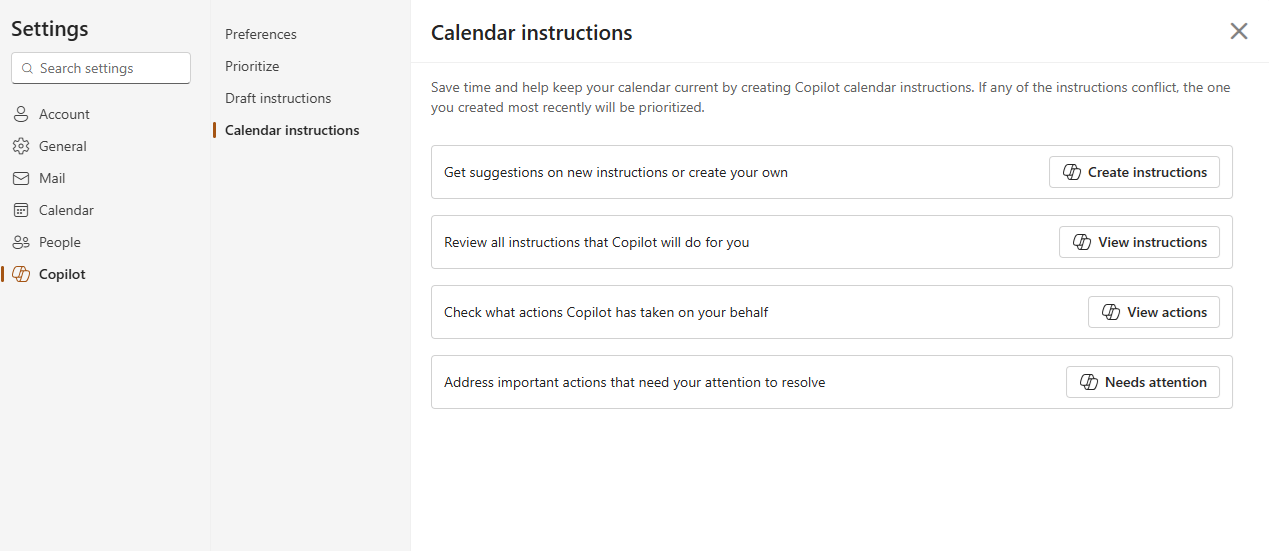
The settings panel also shows a log of what Copilot has already acted on. Checking that before adding more rules is a good idea. Please be mindful that it's easy to write something too broad and end up with Copilot accepting or declining meetings you intended to handle yourself.
Meeting recaps in Teams
When a Teams meeting is recorded or transcribed, Copilot can generate a recap with notes, tasks, and other meeting details. The screenshot below is from an actual training session. The "View recap" button, transcript, speaker count, and task count are all there. After a meeting, you can access Copilot from the meeting chat or from the Recap tab.
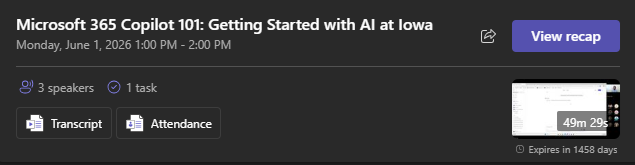
You can also ask Copilot questions about the meeting directly. Speaker-specific summaries are available depending on your settings. The recap can also be shared with others in the organization as a link. Anyone who does not already have access to the recording or transcript will need to request it before they can open it.
Check the recap before you use it or share it. A summary can miss context or make something sound simpler than it was.
Availability
All of these features require the Microsoft 365 Copilot license. Some features, including inbox prioritization and calendar instructions, currently work in new Outlook and Outlook on the web. If something here does not match what you see, it may be due to rollout timing or your Outlook version.
For current guidance on what's available, visit the AI tools page or contact the Emerging Technologies team. To get monthly updates on AI tools and resources, subscribe to the AI at Iowa newsletter.