1. Enter your HawkID and password to access an application (Employee Self-Service, MAUI, ICON, MyUI, Office 365, etc.) with Two-Step Login enabled.
  2. Complete your login using your mobile phone or other device. Duo Mobile will automatically send you a push notification to approve. ITS requires the Duo Mobile app (available for smartphones and tablets) for all users
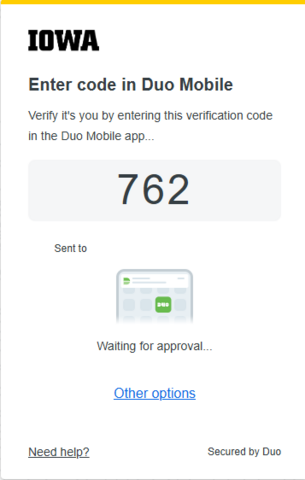
This image shows the Duo verification prompt for the mobile app including the verification code. It also includes a link for "other options" to sign in using Duo.

If you do not have Duo Push enabled or if you click Other Options, you will be presented with a list of Duo authentication methods. 

screenshot of other options menu for duo authentication with devices listed

You will have the option to trust the browser if it is your device.

screenshot of duo remember me feature

Available methods vary depending on the device you select.

  • Duo Push will send a push notification to the Duo Mobile app on the device you’ve selected. Tap “Accept” in the app to complete the login (or tap “Deny” to decline).
  • Verified Duo Push will display a code on the webpage to be entered into the Duo Mobile app. This will only be implemented for university websites.
  • Duo Mobile passcode allows you to enter a passcode from the Duo Mobile app on the device you've selected.
  • Bypass code requires you to enter a passcode given to you by the ITS Help Desk.

Clicking "Yes, this is my device" will identify the computer and web browser you’re using as a trusted device. You’ll be able to login with only your HawkID and password whenever you use the same computer/browser combination over the next 30 days.

Pay attention to requests

If you receive a Two-Step Login verification request when you’re not attempting to log in, be sure to deny the request. It could indicate that an unauthorized user is trying to access your account.

Compare Two-Step Login Methods

The Two-Step Login method you choose may depend on where you are, what device you’re using, and whether you have a phone/internet connection.

Here’s a rundown of the available methods:

MethodDevice(s)BenefitsLimitations
Duo Mobile appSmartphone, tablet
  • Easy and fast—one tap or code completes push logins
  • Reliable—app can generate on one-time passcode when no phone or internet access is available
  • No geo limits—can be used when traveling abroad, with or without an internet connection
  • Economical—avoids charges associated with other methods
  • Requires installation on your device (the app is free)
One-time passcodeToken device
  • Alternative option for users who don’t have a phone
  • Token device must be purchased and configured by support staff
  • Finite battery life—will require replacement
Printed list of codesNo device
  • No tech option for users who don’t have a phone or token device
  • Must have list available when you need to log in
  • Codes can only be used once—expired codes will trigger account lockout

How to Generate Backup Codes

Preparing Backup Codes in Advance

You may have instances where you need to access a service that requires Two-Step Login, but you don't have access to an enrolled device to complete your login. In these cases, you can enter a pre-generated passcode.

These codes must be generated in advance using the Account Center. To access the Account Center, you must be on campus or remotely accessing a computer that is on the campus network.

To generate a list of two-step login backup passcodes: 

  1. Log in to Account Center with your HawkID and password.
  2. Click the button to generate a list of backup codes at the bottom of the page.
  3. Print the page and keep it in a safe place (such as your wallet).

You can only have 10 pass codes available for your use at any given time. Every time you generate passcodes, all previous codes are immediately invalidated

If you need to enroll your phone in Duo Mobile app and can't come to campus or access a campus computer, contact the ITS Help Desk at 319-384-4357 for assistance.

Accessing Backup Codes When You Don't Have Cellular or Wi-Fi Service

Pre-generated backup codes are not required if your device is already enrolled in the Duo Mobile app, even without cellular or wireless service. The app can generate one-time codes for situations where network connectivity is unavailable.

To generate a single login passcode using your mobile smart phone and the Duo Mobile app:

  1. Open the app on your phone and tap "Show" to the right of the Passcode.
  2. Enter the code displayed in the app on the application login screen.

This code generator works for the HawkID, the HealthcareID Login for UIHC, and for personal accounts that you have added into your app.

Last updated
Article number
4951