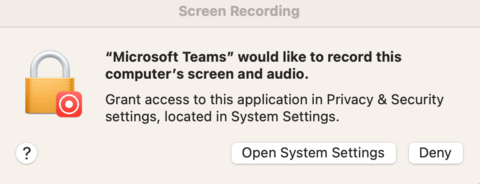
On a macOS device running Teams, you will need to grant Teams additional permissions the first time you use screen sharing. Teams will prompt you to open the System Settings and then to allow it 'Screen Recording' access. You will see the image below and then just follow the steps it presents.
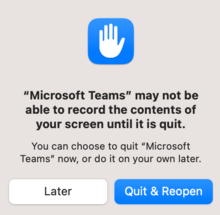
After allowing Teams Screen Recording permissions, you may be prompted to restart Teams. Click on Quit & Reopen. You will now be able to share your screen in Teams.
Please note: If you run into any issues or if you get a message indicating you need Administrative rights, please reach out to your local IT support staff for assistance.
To allow screen sharing manually:
After Teams has been installed but before you have needed to screen share, you can follow the steps below:
- Click on the Apple logo in the top left corner of your screen
- Click System Settings, then click Privacy & Security, and finally click Screen Recording
The Screen Recording menu will show you each application that has asked for permission and whether the permission has been granted or denied.

Enable screen recording by clicking on the toggle. This will turn the slider blue.

Teams may request that you restart Teams before the changes take effect.
Please note: If you run into any issues or if you get a message indicating you need Administrative rights, please reach out to your local IT support staff for assistance.