Method 1: Copy Folders from Home Drive to OneDrive
The simplest way to migrate your data from your Home Drive to OneDrive for Business is to copy folders from your Home Drive into your OneDrive sync client. This will automatically sync your data. Your sync client is the blue cloud in the lower right hand corner of your Windows 11 workstation, or along the top bar of your Mac. Simply click on the blue cloud and select Open Folder.
Method 2: Sync files to OneDrive on the web
If you don't have the sync client or don't want to install the sync client, you can also login to office365.uiowa.edu and upload into OneDrive.
Method 3: Migrate with SharePoint Migration Tool (On-campus Only)
IMPORTANT: Please do NOT do not use this process unless you are on the campus network or are remotely connected into a workstation on the campus network. ITS recommends using Method 1 or Method 2 above to migrate your data to OneDrive.
- Make sure that your Home Drive is mapped.
- If you haven't used OneDrive before or don't have any files located in your OneDrive folder, you can simply copy the files from your Home Drive to your OneDrive. This will preserve your Home Drive folder structure in OneDrive.
- If you already have files in OneDrive, you want to create a new folder in OneDrive called HDrive. You can do this by either:
Logging in to Office 365 with your HawkID@uiowa.edu login and selecting the OneDrive tile. Create a new folder called HDrive.
OR
- Clicking on the OneDrive sync client (blue cloud icon in the system tray, lower right hand corner near the clock). Select Open Folder, and then click the + New button on the menu bar and select Folder.
- Check the OneDrive sync client to ensure that you have the Files On-Demand box checked. This will keep you from filling up your local hard drive.
- Windows: Right click on the blue cloud in the lower right hand corner, select Settings and select the Settings tab.
- Mac: Follow these directions
Once these 2 steps are accomplished, follow the steps below:
- Download the SharePoint Migration Tool (select General Availability).
- Select Install Here to install it to your local computer.
- Go to downloads or wherever your browser is set to download files to install the program.
- You should now have a SharePoint Migration Tool icon on your desktop. Double click to start the program.
- At the Sign-in prompt, login as HawkID@uiowa.edu. This will take you to the University's HawkID login page for Office 365. You will get a Duo prompt.
- Once logged in, select Add new migration under File Share.
- Select Single file share source (To migrate content is on my local computer or on a network file share).
- Under the Select a source click on the button that says Choose folder.
- Select the drop-down arrow under This PC and select H:

- Make sure the Migrate selected folder and folder contents option is selected before selecting Next.
- Select OneDrive as the location to where you are copying data.
- Under Select OneDrive Destination make sure it has your HawkID@uiowa.edu in the User Email Address or OneDrive URL box.
- You will see Documents under Select the location you want to migrate to.
- Click on the down arrow over on the right hand side and select the folder you created earlier in the process (HDrive).
- Please NOTE: This is very important or you could potentially copy over files already in your OneDrive.
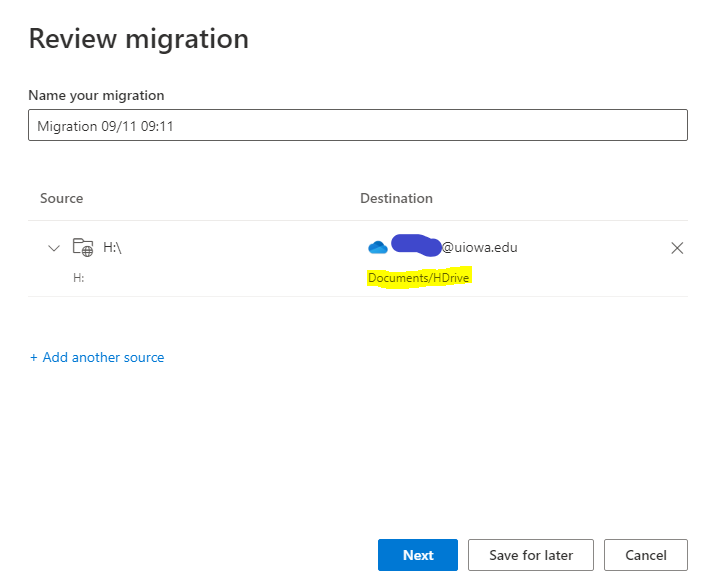
- Select Next to Review your settings.

- Make sure your settings look like the image above and select Migrate.
- Once the migration is done, you can save your migration settings.
- Login to office365.uiowa.edu and select the OneDrive tile to see your files or check via the sync client (blue cloud in lower right hand corner).
NOTE: Contact the ITS Help Desk or your Local IT person and let them know you are done with your Home Drive so it can be closed.
If you would like your Home Drive migrated to OneDrive and would prefer that an IT person to do it for you, please contact the ITS Help Desk.