Getting Started
Accessing Copilot in Teams
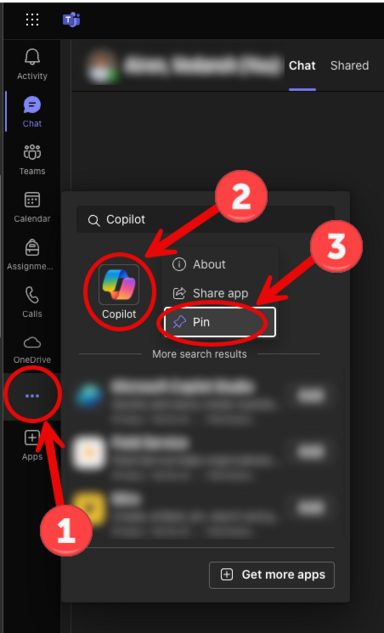
- Locate the Copilot App
- In Teams, navigate to the App bar (left panel).
- If Copilot is not visible:
- Select Ellipsis (the three dot menu) on the App bar.
- Search for Copilot, then click Add.
- You may drag and pin the Copilot app to your preferred location on the App bar for easy access.
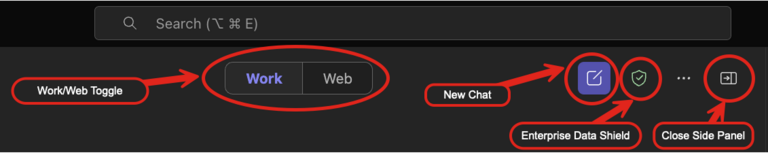
- Work/Web Toggle
- Located at top in the Copilot window, this toggle allows you to define the source of Copilot's responses:
- Work: Uses University of Iowa data sources you have access to.
- Web: Allows Copilot to retrieve publicly available information from the internet
- Located at top in the Copilot window, this toggle allows you to define the source of Copilot's responses:
- Starting a New Chat
- Selecting “New Chat” clears previous context and allows Copilot to focus on your new request.
- Enterprise Data Shield
- Indicates that your interaction is secured within the University’s data environment and is not used to train large language models.
- Close Side Panel
- Use this option for a larger workspace when engaging with Copilot.
Using Copilot Agents and Managing Recent Chats
In the Copilot application in Teams, you’ll find helpful tools like Agents and Recent Chats to assist with tasks, provide guidance, and keep track of ongoing conversations.
- Agents
Agents in Microsoft 365 Copilot are customized AI assistants built for specific tasks or use cases. These agents can help automate processes, answer questions, or provide guided support on specialized topics.- You can create your own agents and use them whenever needed.
- Agents can be shared with colleagues to support collaborative workflows.
- Within the Copilot chat, type the “@” symbol and select an agent by name to start a conversation with that agent.
- To access available agents, navigate to the top of the right-side panel in Copilot. Select the agent that best fits your task.
- Recent Chats:
- Access all your previous chats with Copilot in this area.
- Click the ellipsis (...) beside a chat to rename or delete it.
- Renaming makes it easier to locate and revisit ongoing conversations.
Smart Shortcuts in Your Prompt Window
When composing a message in Copilot chat, you can enhance your input using these tools and shortcuts:
- Reference with “/”: Use the forward slash to reference University-related people, files, meetings, and emails directly within your prompt.
- Interact with Agents using “@”: Use the “@” symbol to call and interact with a specific Copilot Agent. Select from your available agents to tailor the conversation to your specific task or topic.
- View Prompts:
- Access commonly used prompt suggestions located above the prompt window.
- To explore more, click “See more” at the bottom of the prompt suggestions and select “Prompt Gallery.”
- Within the Prompt Gallery, save frequently used prompts by clicking the ribbon icon on a suggestion.
- Access your saved prompts anytime under Your Prompts for quicker reuse.
In-Meeting Support with Copilot
Use Copilot in meetings to stay informed, retrieve missed details, and receive helpful suggestions or action items from the conversation.
- Before Using Copilot in a Meeting:
- Ensure that meeting transcription is enabled—Copilot relies on the transcript to generate summaries and insights.
- You must be an invited participant in the meeting for Copilot to function.
- Copilot can begin summarizing after the meeting has been running for at least 5 minutes.
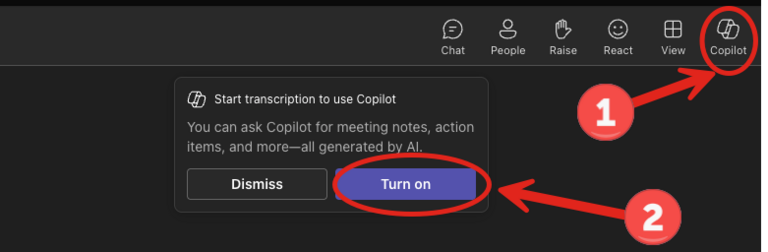
- Accessing Copilot During a Meeting:
- Click the Copilot icon from the in-meeting control bar.
- If transcription is not yet active, you will be prompted to enable it—click “Turn on” to proceed.
Once active, the Copilot side panel will appear. You can begin typing prompts or choose from suggested questions.
For the latest updates and guidance, visit: Use Copilot in Microsoft Teams Meetings
Post Meeting Recap with Copilot
After the meeting ends, use Copilot to get a detailed recap so you can review key points, suggested action items, and open questions—no need to revisit the full transcript.
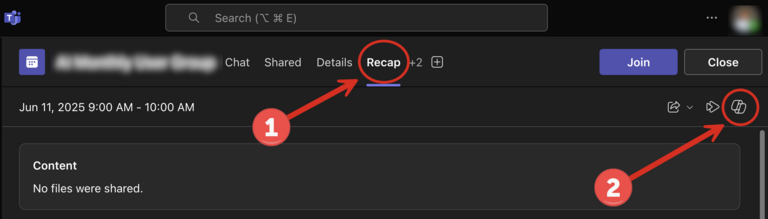
- Navigate to the Calendar in Teams.
- Double-click on the meeting you attended.
- In this window:
- Select Recap in the menu
- Then click the Copilot icon (located on the far right)
- Use the prompt window to ask follow-up questions or receive summaries of the meeting content.
- Additional prompts are available to assist with common tasks.
For the latest updates and guidance, visit: How to use Copilot after a meeting
Need Help?
Need Help?
If you have questions about how to get started or would like some advice on how AI can assist you with work tasks, please contact the AI Support Team.
We’re here to support your success with AI-powered tools at the University of Iowa!
AI Resources
For additional information on AI tools and AI guidelines here at the University of Iowa, check out the resources below: