Copilot Chat gives UI students, faculty, and staff access to a generative AI-powered platform with enterprise data protection. Copilot Chat does NOT have access to your Microsoft 365 data such as your email, OneDrive files, Teams data, etc. Although Copilot Chat now remembers the history of what you have previously asked, allowing you to easily reuse prompts, it does not use any data that you submit to train the model that powers the tool. Copilot Chat is currently accessible via the Microsoft Edge browser sidebar and through the dedicated Copilot Chat web portal. 

This support article outlines:
  • Frequently Asked Questions on Copilot Chat
    • How to Login to Copilot Chat via the Web Portal
    • How to access Copilot Chat using the Microsoft Edge browser sidebar
    • Overview and Highlights of Copilot Chat Interface
  • Key features on Copilot Chat

For live training on how to use Copilot Chat, see dates available.  

Key Features on Copilot Chat

  • Copilot Chat Agents

    Learn how to create and use Copilot Agents – custom AI assistants that help automate tasks, answer questions, generate visuals, and assist with web-based content. This one-page guide outlines key features and provides step-by-step instructions to help you get started. Click here to access the Copilot Agents Reference Sheet.

  • Teach Feature

    This feature provides AI-powered teaching tools for creating lesson plans, drafting materials and assisting with assignment modifications. Click here for more information on Teach in Microsoft Copilot.

How do I login to Copilot Chat via the Web Portal?

  1. To access Copilot through a web browser, navigate to https://copilot.microsoft.com
  • Note: Third-party cookies may need to be enabled to log into Copilot. Click here for instructions on how to enable third-party cookies.
  • Note: When you first log into the new Copilot, you may be prompted with a series of windows that are different than the previous version of Copilot. Once you log in the first time, you should not see these again.
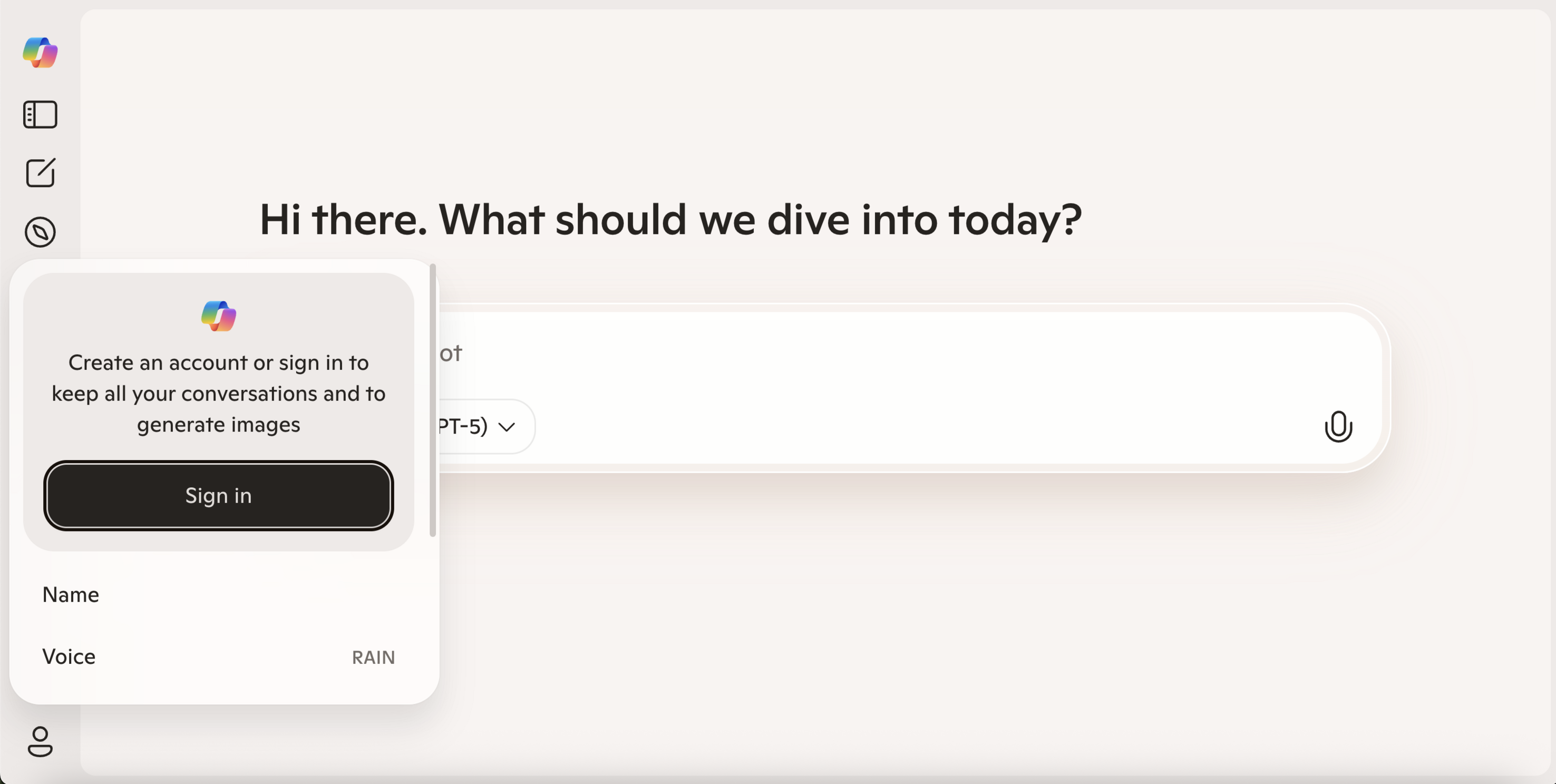
  1. Click the icon in the top right corner with an image of a person. Next, choose “sign in”.
  2. Sign in with your university credentials. <HawkID>@uiowa.edu 
copilot sign in window
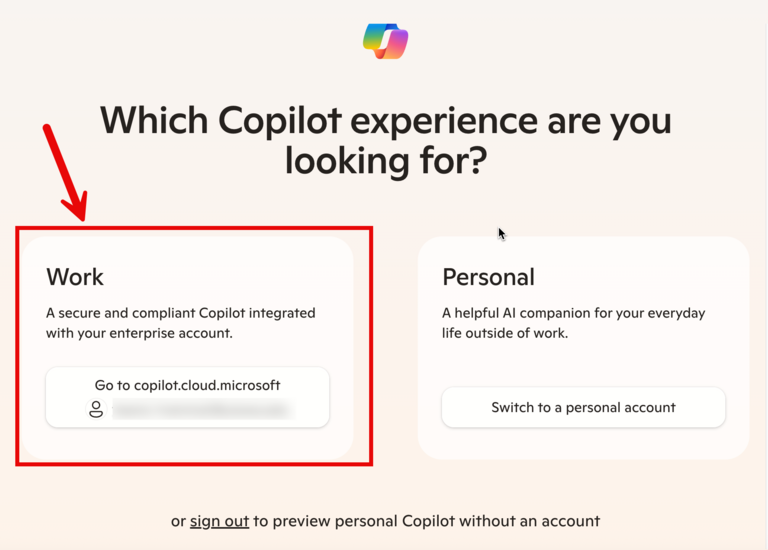
  1. If you are prompted to choose a Copilot experience, choose “go to Copilot for work”.
screenshot of go to copilot for work login
  1. If you see a message that authentication is required, click "continue".
click continue on the authentication required screen
  1. You are now signed into Copilot. To verify you are signed in, you’ll see your profile picture or initials in a circle in the top right.  

How do I access Copilot Chat via Microsoft Edge Browser?

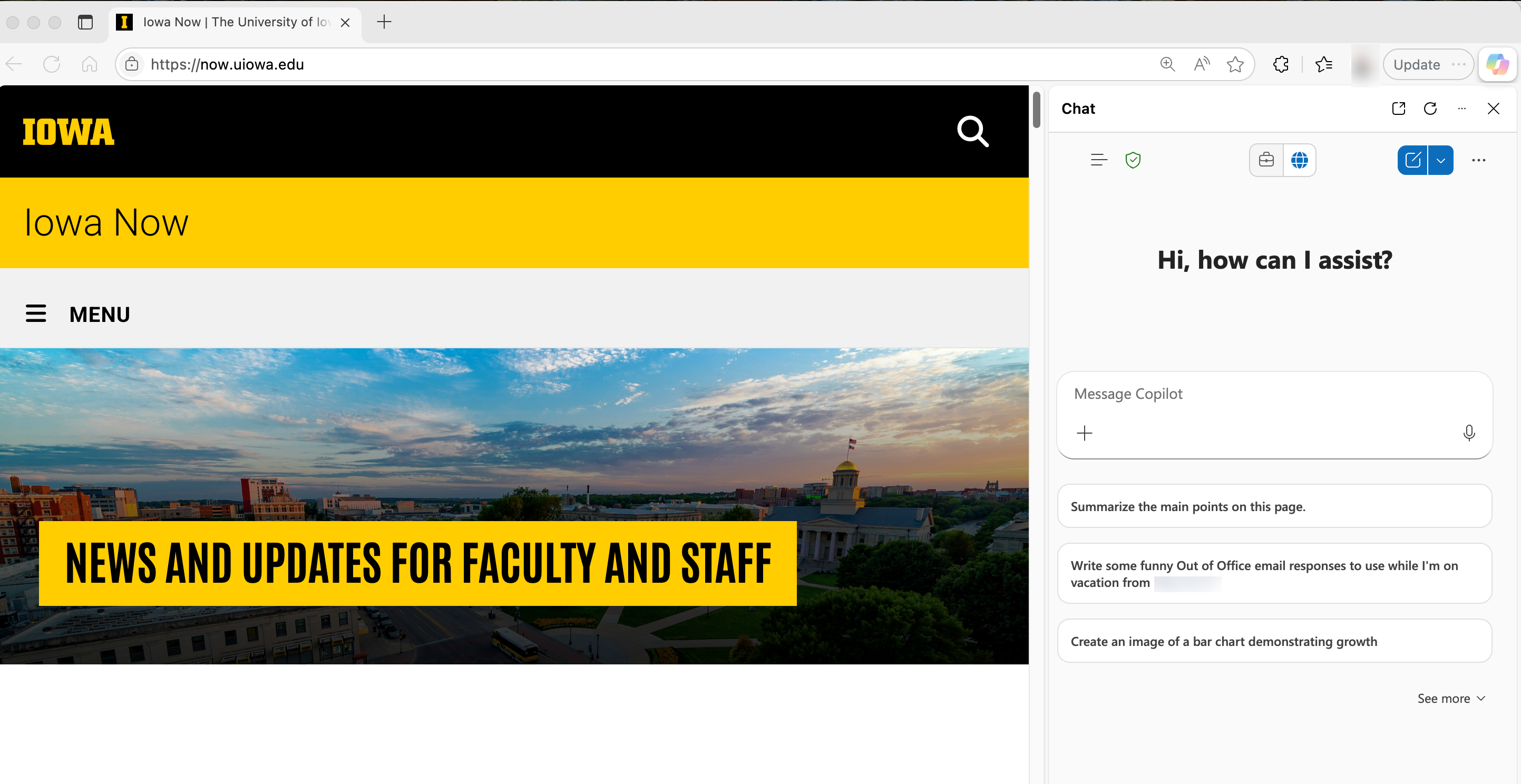
  1. Click on the Copilot logo at the top right of the Microsoft Edge browser sidebar. This will open up the prompt window.
  2. Click "sign-in" right above the prompt input area. Login with your University of Iowa email address and then your HawkID and password.
  3. Make sure that you see the green shield at the top of the window to confirm that you are logged in. You are now ready to submit prompts to Copilot.
sign into copilot using edge

Can you provide a common overview of the Copilot Chat interface?

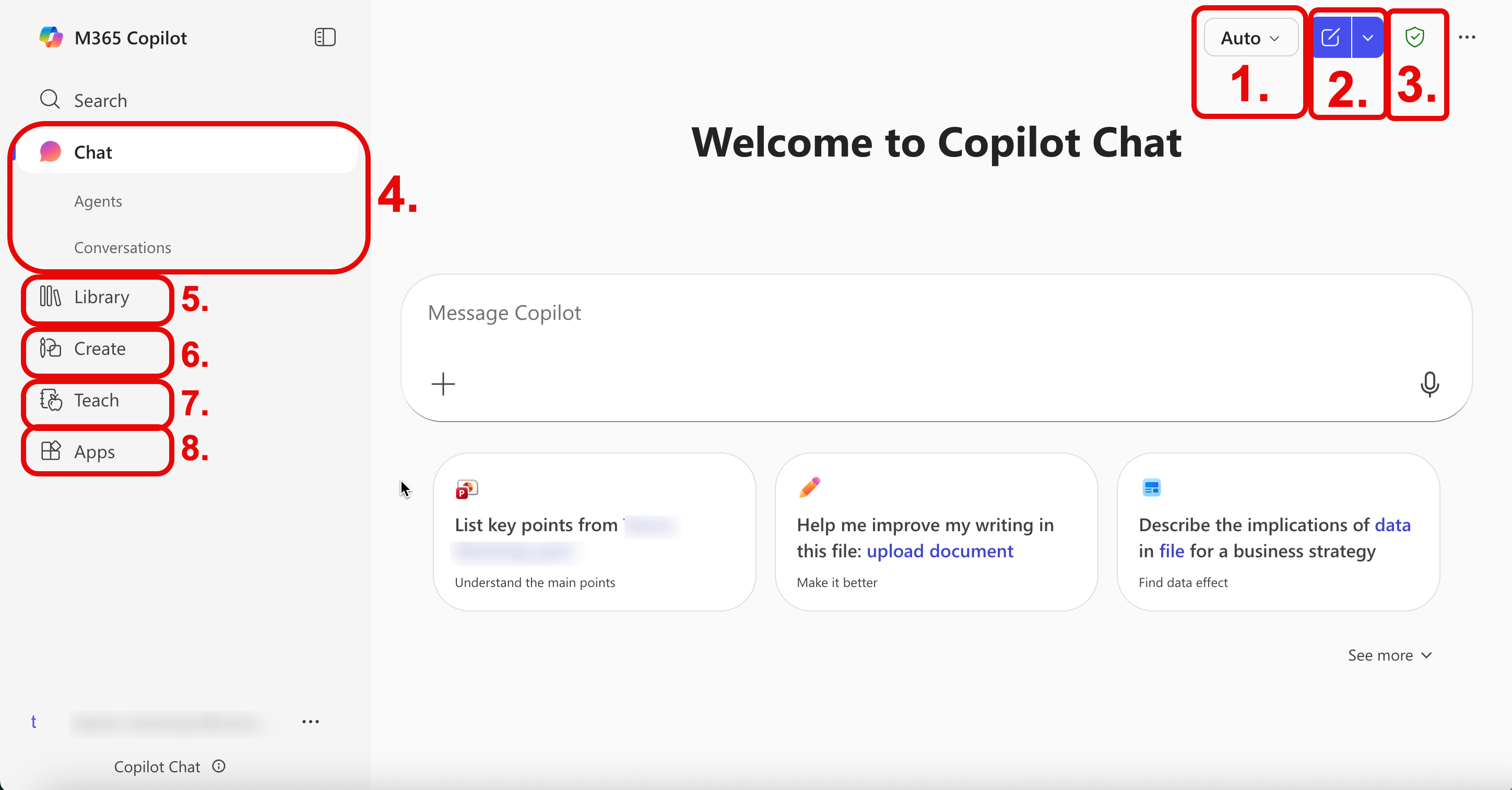
Copilot Chat Interface
screenshot of new copilot home page with numbers 1-2-3-4
  1. Click “new chat” to start a new conversation with Copilot Chat. It will not remember the context of the previous prompts when starting a new conversation.
  2. This shield indicates that you are logged in and have enterprise data protection. Copilot Chat is safe for use with university data labeled internal or public.
  3. This info bubble also says that you are protected by enterprise data protection. This icon opens a panel that displays your Copilot Chat history and conversations.
  4. You can click on any conversation to go back to it or continue the conversation.
 

Please Note: Some users are seeing an update as of early June 2025 for a new Copilot interface: 

Screenshot of a Copilot Enterprise home page

I see Copilot in my Microsoft Applications. What does this mean?

Copilot Chat in Microsoft Applications

The Copilot icon is visible in Microsoft applications for users. This gives a user access to the interface within the app. They can use the backslash "/" option to access One Drive files. Please note, in-line editing is not supported. 

Last updated
Article number
7086