What is Microsoft 365 Copilot in Word?
Microsoft Copilot in Word is a built-in tool that can help you write and edit documents. You can ask it to create a first draft, rewrite a section to make it clearer, summarize long text, or help you start a document when you're not sure where to begin. Copilot works alongside you, using your existing content and instructions to suggest helpful changes. You’re always in control—you can accept, edit, or ignore anything it suggests.
When using Copilot in Word, stay engaged—AI can occasionally get things wrong. Always review its suggestions to make sure they’re accurate, appropriate, and aligned with your goals.
This page provides an overview of how to use Microsoft 365 Copilot in Word. As with all AI-powered tools, Copilot is continuously evolving. Updates to Copilot are rolled out incrementally, so your options may differ slightly from those on this page from time to time.
For additional resources for Copilot in Word, please visit the official Microsoft documentation: Copilot in Word.
Getting Started
Accessing Copilot in Word
Copilot Sidebar
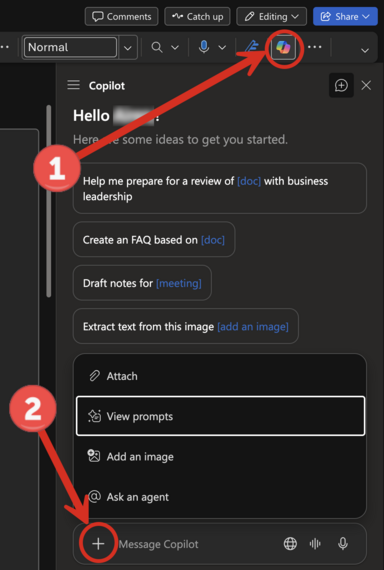
- While in Word, make sure you click on "home" first, and then click the Copilot icon to open the sidebar. This will open a side panel where you can enter prompts or reference existing content, among other features.
- You can type your question or request directly into the prompt window, or use the “+” icon to access additional tools that enhance your interaction with Copilot:
Copilot Sidebar Features
- Attach – Reference your Office 365 content (e.g., emails, files, meetings, or people) to provide Copilot with context for more accurate responses. Or, type a forward slash (/) to bring up a menu of files, people, meetings or emails you can reference. Select one from the recent files list or type the name of the person or document you are wanting to reference.
- Add an Image – Upload an image (+ sign) to receive AI-generated insights based on its content.
- View Prompts – Open the Prompt Gallery to explore a curated list of commonly used prompts tailored to Word-related tasks.
- Ask an Agent – Interact with a Copilot Agent that you've created or is provided by Copilot.
Managing Content Preferences
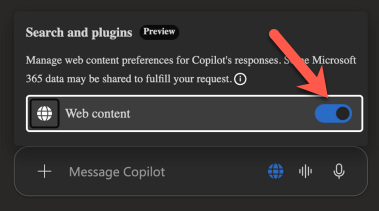
Manage Content Preferences
Use the Web content toggle to control what Copilot references in its responses:
- Turn the Web content toggle off (gray) to limit responses to reference only the data you have access to within your University of Iowa account.
- Turn the Web Content toggle on (blue) to reference both the data you have access to as well as all publicly available web content.
Interact with Copilot Using Audio
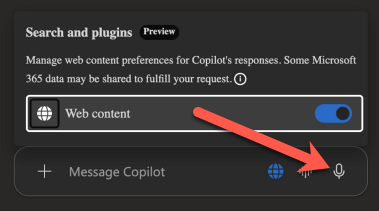
Speak with Copilot (Audio Input)
Click the microphone icon to interact with Copilot using your voice. This feature allows you to ask questions or give commands verbally.
- Note: Voice interaction is being rolled out gradually and may not be available to all users or on all platforms at this time.
Using Copilot to Edit Content in Word
Copilot is also available directly within a document for contextual writing and editing support.
How to Access the Inline Copilot Features
- When you create a new document, Copilot appears at the top of the page.
-
- For existing documents that already contain content, the Copilot icon will appear in the left margin.
-


When no content is selected in the document:
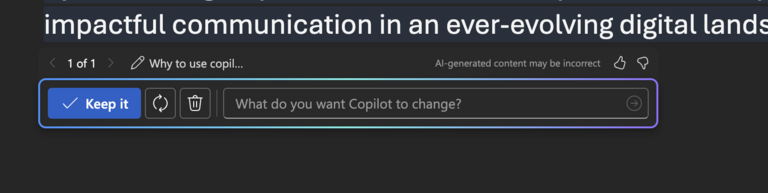
When no content is selected and you click the Copilot icon in the left margin, it opens a prompt window. After you type a prompt and Copilot generates a response, you’ll see options to:
- Keep – Insert the generated content into your document.
- Regenerate – Rewrite the content using the same instructions (give you another version).
- Discard – Remove the generated content.
- Suggestion Selector – Use the left and right arrows near the top of the Copilot suggestion box to browse through multiple draft options generated by Copilot, if available.
-
When content is selected in the document
If you select a portion of text in your Word document and then click the Copilot icon in the left margin, it will bring up contextual editing options. Copilot will provide a set of quick actions to enhance or transform the selected content:
- Auto rewrite – Generates an improved or alternative version of the selected text.
- Make shorter – Condenses the content while retaining the key message.
- Make formal – Adjusts the tone to be more professional or academic.
- Writing suggestions – Offers phrasing ideas or content enhancements.
- Visualize as a table – Converts the selected content into a table format, if applicable.
- Chat with Copilot – Opens the Copilot sidebar prompt window, keeping the selected text in context. You can continue the conversation with Copilot for more detailed edits, follow-up questions, or iterative refinements.
-

Need Help?
Need Help?
If you have questions about how to get started or would like some advice on how AI can assist you with work tasks, please contact the AI Support Team.
We’re here to support your success with AI-powered tools at the University of Iowa!
AI Resources
For additional information on AI tools and AI guidelines here at the University of Iowa, check out the resources below: