Just-in-Time Admin (JTA) Feature
Summary: Just-in-Time Admin (JTA) is an optional feature for customers of Managed Application Services (EI-MAS) where they have a requirement of needing independent administrator level access to the server(s) running their managed service. Through this optional feature, these customers will be able to immediately self-elevate to the local administrator role on their designated server(s).
JTA Overview
The Managed Application Services (EI-MAS) team offers two levels of managed services to campus: Core Application Services (CAS) and Specialized Application Services (SAS). For both of these service offerings, MAS staff act as the systems administrators and retain the exclusive ownership of local administrator access internally. At the same time, we recognize that there are certain situations where a customer requires access to the server(s) running their services at the highest privilege level of local administrator. To allow for these situations, we have added an additional feature to our offering for managed Windows Servers of Just-in-Time Admin (JTA).
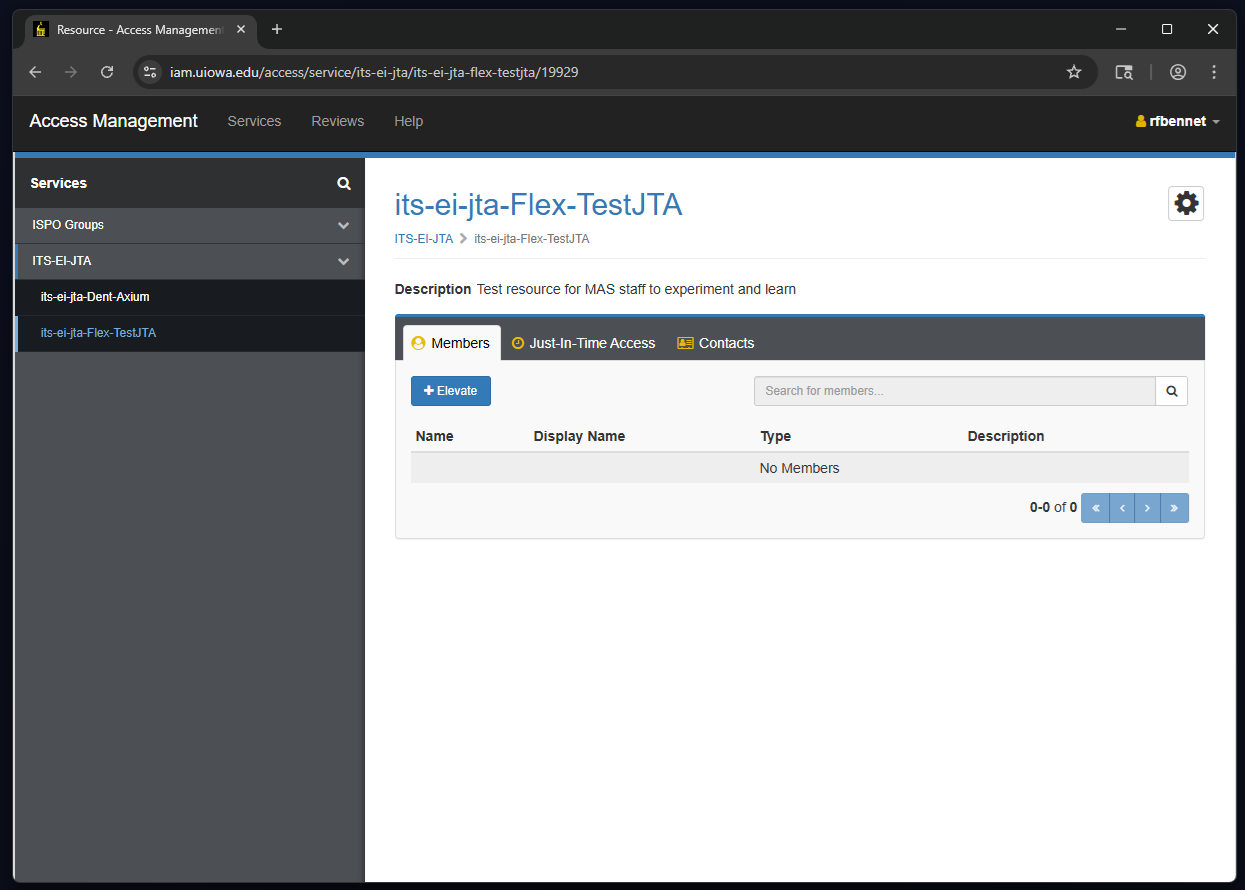
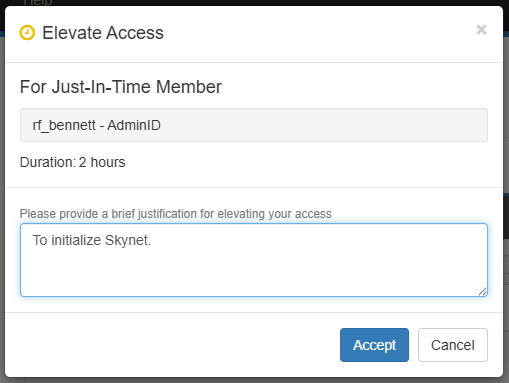
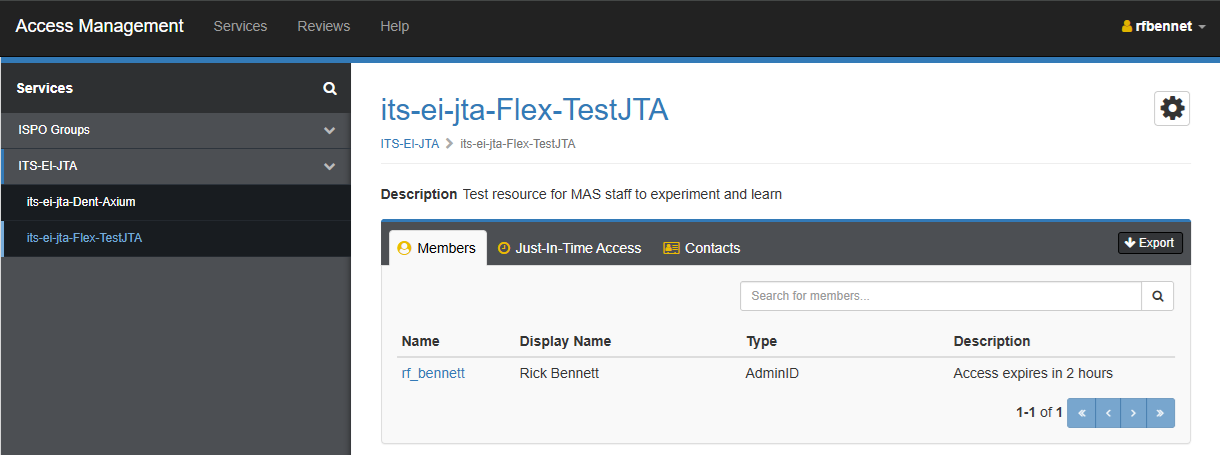
Once enabled for a specific server, the customer will be allowed to self-elevate their admin ID (required) into the role of local administrator for a set period of time (default is 4 hours). This self-elevation can happen 24x7 and does not require an approval at the time of request. Once the time has elapsed, their account is automatically removed from the local administrator role. We are leveraging the Access Management service from ITS Identity and Access Management (IAM) to enable this feature.
In order to follow University of Iowa security policies, MAS has adopted a stance of least privilege access for application servers we manage. MAS will not allow this JTA feature unless approved by MAS leadership for the designated server(s). According to ITS Security Office, allowing priveleged access as a local administrator should be avoided whenever possible. Most requests for server access to manage specific aspects of the application can be configured without requiring local administrator rights. MAS leadership evaluates requests for this feature by asking the question “Can MAS grant access to the server(s) at a non-administrator level and still allow the customer the ability to independently manage their application?” Examples of access we can allow without local administrator:
- Check specific server settings
- Copy and edit local files in designated folders
- Stop/start/restart services
- Launch an application from server desktop
- Reboot the whole server
If we are unable to meet the requirements through other steps, we will work with our customers to configure their server(s) for JTA. Even though a customer may be using JTA, we still value the partnership and MAS sysadmins are responsible for many aspects of managing the servers. We stress good, collaborative communications between our customers’ technical staff and MAS sysadmins. The more that MAS is aware of on your applications, the more able we are to quickly help resolve issues.