Events – Favorite Event, Register & My Events Space (Jan 5, 2026)
What’s new in the University of Iowa mobile app?
Finding campus events just got easier. The updated Events feature helps you discover what’s happening, save what you care about, and keep everything in one place.
A new Events home page
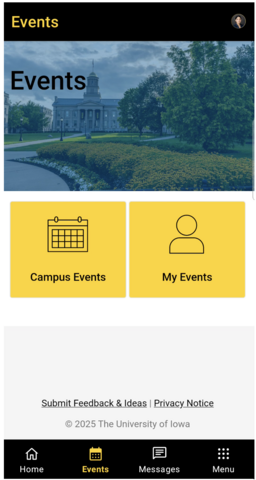
When you tap Events, you’ll see a new home page that helps you explore what’s going on across campus. Use the quick tiles to jump right in:
- Campus Events – Browse events happening across campus
- My Events – See events you’ve saved in one spot
My Events (new!)
My Events is your personal events hub. It lets you:
- See all events you’ve favorited
- Quickly check what’s coming up
- Look back at past events you’ve saved

Favorite events you care about
You can now favorite (or unfavorite) events right from the events list or event page. Any event you favorite automatically shows up in My Events, so it’s easy to keep track.

Easy event registration
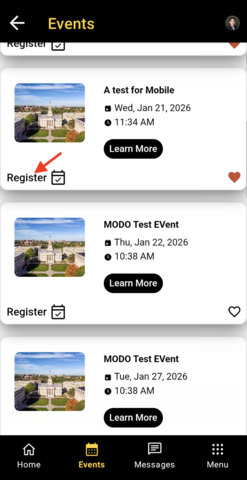
If an event requires registration, you’ll see a Register button on the event card. Just tap it to go straight to the sign-up form.
Update or download the app
If you have the app installed, please update it from the App Store or Google Play to experience the latest features.
- iOS: Download on the App Store
- Android: Get it on Google Play
We’d love to hear what you think! Try out the new features and share your thoughts using the Submit Feedback and Ideas link at the bottom of the app.
My Profile, Easier Events Navigation, Well-being Tile, Campus Event Filters & New Resources (May 22, 2026)
A more personal, connected Iowa app. Personalize your new My Profile, get to Events faster from the bottom navigation, discover well-being and additional campus resources, and use new Campus Events filters to find what matters to you. Plus, we’ve updated the app for 2026.
Make the Iowa App Yours with My Profile
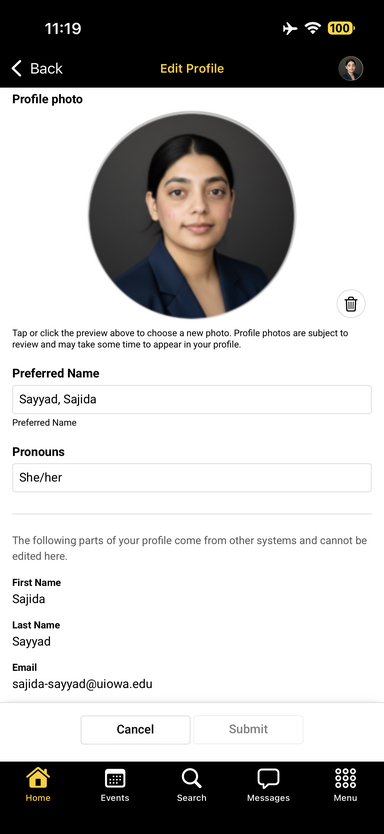
You now have a My Profile space in the Iowa app where you can personalize how you appear in the app.
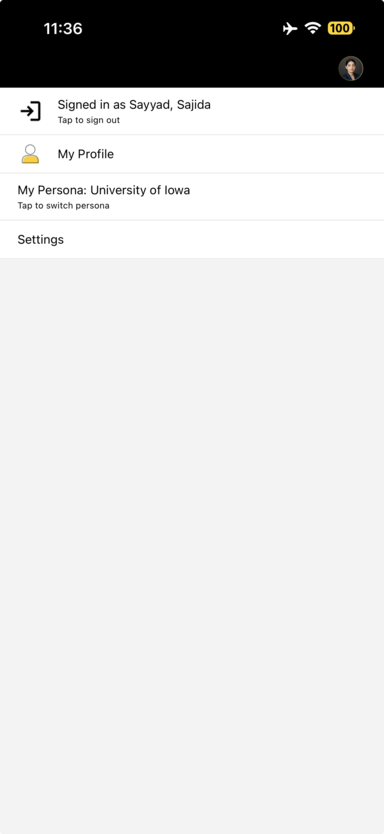
To access your profile, tap your account icon in the upper-right corner → My Profile.
Your profile brings together information associated with your account, including your name, pronouns, email, and profile photo. Select Edit my profile to personalize the information you can manage directly in the app.
You can:
- Add or change your profile photo
- Add or update your preferred name
- Add or update your pronouns
Some information, such as your first name, last name, and email, comes from other university systems and cannot be edited from the app.
Try it out: Tap your account icon and head to My Profile to make your profile feel more like you.
Events Are Now One Tap Away
Getting to events just got faster.
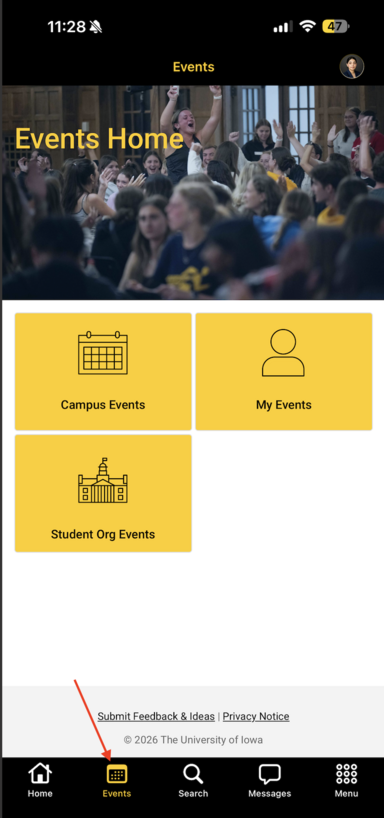
We’ve added Events directly to the app’s bottom navigation bar, so you can jump into what’s happening around Iowa from almost anywhere in the app.
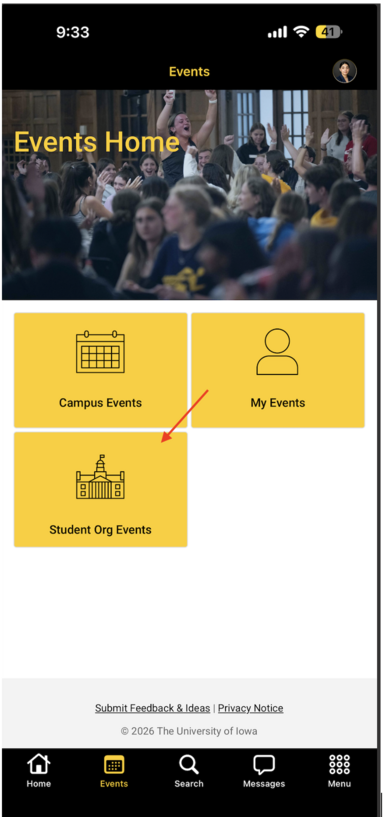
Tap Events to access the Events Home, where you can explore:
- Campus Events
- My Events
- Student Org Events
You can still discover events through the Explore area as well—now you simply have a faster way to get there when events are what you’re looking for.
New Well-being Shortcut in Explore
Looking for resources to support your well-being? They’re now easier to find.
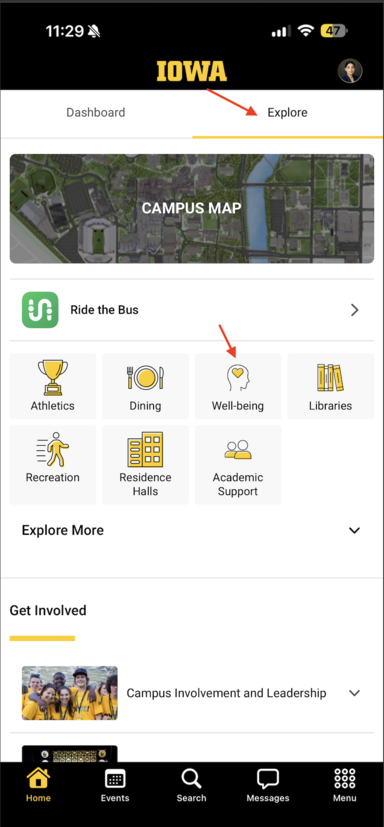
A new Well-being tile has been added to Home → Explore, alongside other frequently used resources such as Athletics, Dining, Libraries, Recreation, Residence Halls, and Academic Support.
Tap Well-being for quicker access to well-being resources available to you at Iowa.
More Campus Resources Added to Menu
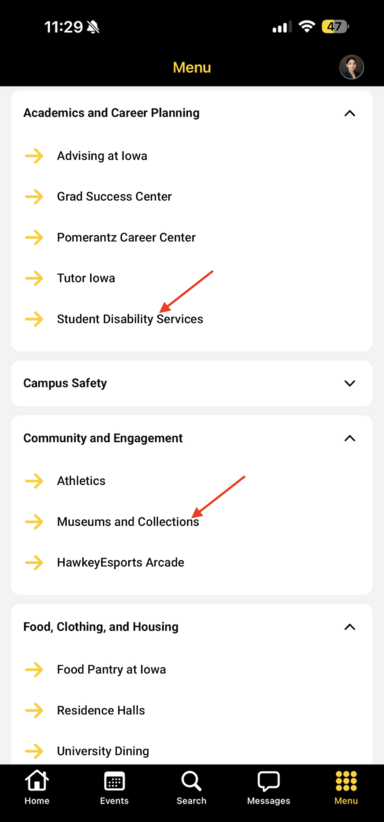
We’ve expanded Menu with additional university resources so you can get to important services directly from the Iowa app.
You’ll now find:
- Student Disability Services under Academics and Career Planning
- Museums and Collections under Community and Engagement
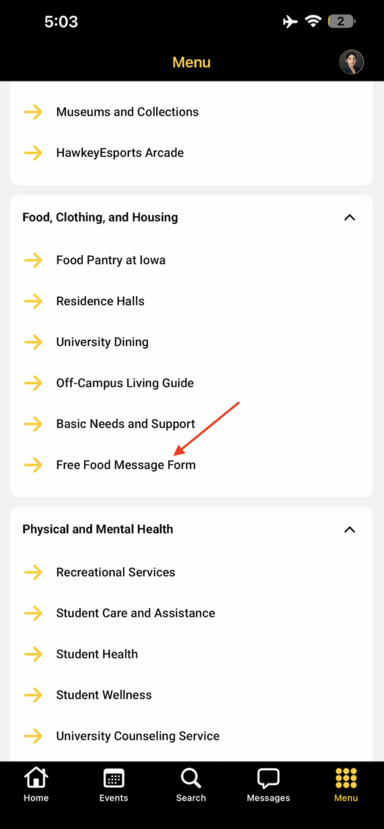
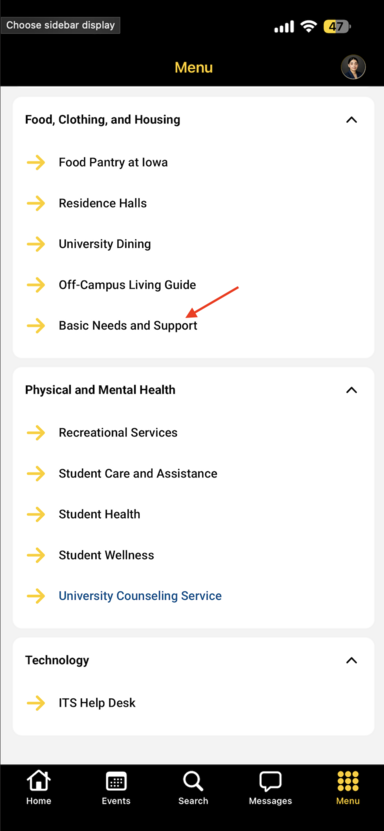
- Basic Needs and Support under Food, Clothing, and Housing
Head to Menu to explore these resources alongside the other academic, campus life, health, housing, technology, and student support services already available in the app.
New Campus Events Filters: Find Events That Fit You
With lots happening around campus, finding the right event should be easy.
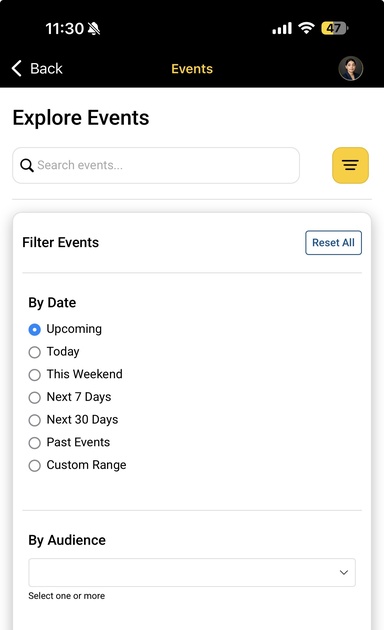
We’ve expanded Campus Events with new filtering options that let you narrow the event calendar by:
By Date — Quickly focus on events happening during the timeframe you care about, such as Today, This Weekend, Next 7 Days, Next 30 Days, Past Events, or a Custom Range.
By Audience — Narrow events based on the intended audience, helping you find opportunities that are more relevant to you.
To use them, go to Events → Campus Events and tap the Filter icon.
Apply your selections and spend less time scrolling—and more time finding something worth checking out.
2026 Copyright Update
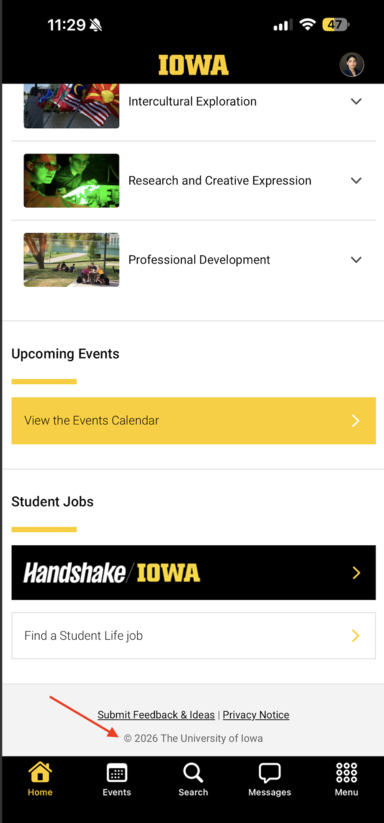
We’ve also completed a small housekeeping update for the new year. The University of Iowa copyright displayed throughout the app has been updated from © 2025 to © 2026.
Engage Integration, Campus Event Enhancements (2 new filters, instances consolidation, and new event card view), Global Search and Opt-in Channel Workflow (Aug 21, 2026)
What’s New in the Iowa App
Student Organization Events
You can now discover Student Organization Events from Engage directly in the Iowa app, in addition to Campus Events.
Go to Events → Student Org Events to explore organizations and their events.
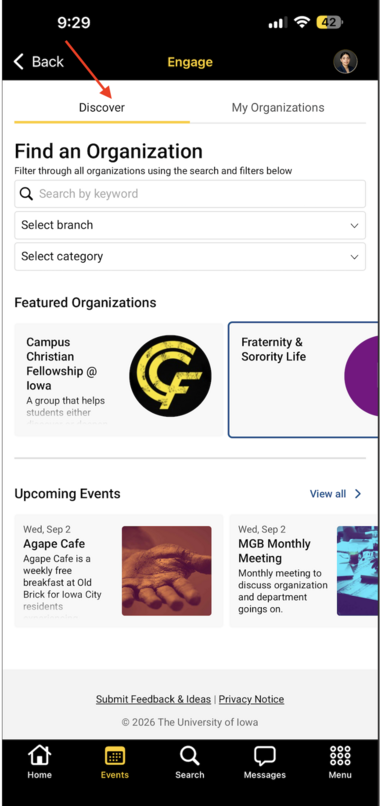
Discover tab
Use the Discover tab to:
- Search organizations by keyword
- Filter organizations by branch
- Filter organizations by category
- Browse Featured Organizations
- View Upcoming Events
- Select an organization to view its organization page, including:
- Organization information/details
- Upcoming events
- Organization news
- An option to join the organization
My Organizations
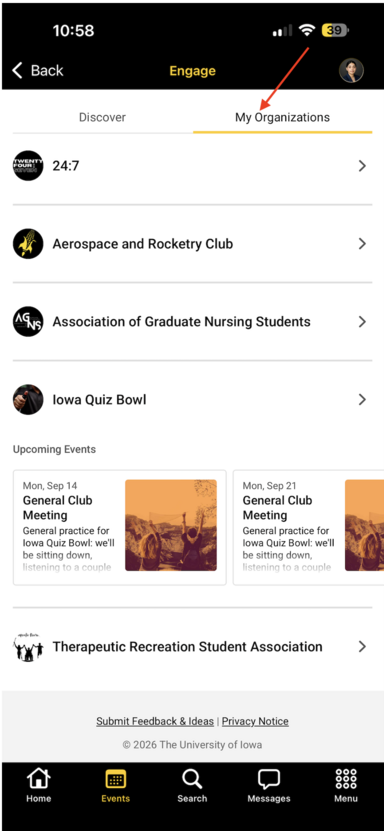
The My Organizations tab shows the student organizations you have joined or are already a part of.
Explore Student Organization Events
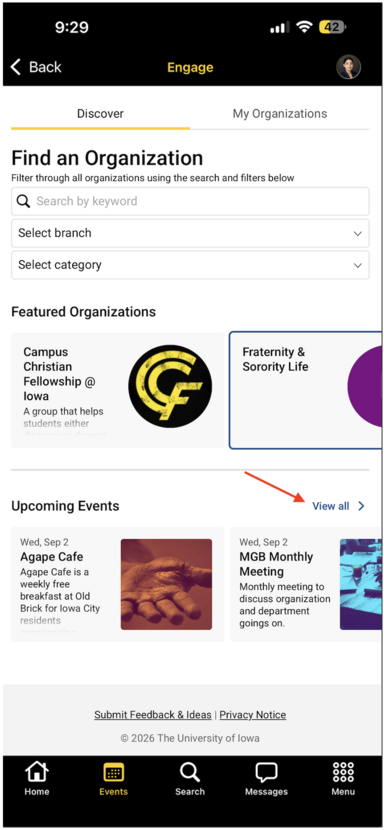
Select All Events from the Upcoming Events section to open a calendar view of student organization events. From the All Events experience, you can:
- Search for events
- Filter events
- View My Favorite Events
- Favorite events

Selecting an event opens its Event Details page, where you can favorite the event. Favorited events are saved and can be viewed from My Favorite Events.


🆕 Global Search
A new Search option is now available in the bottom navigation.
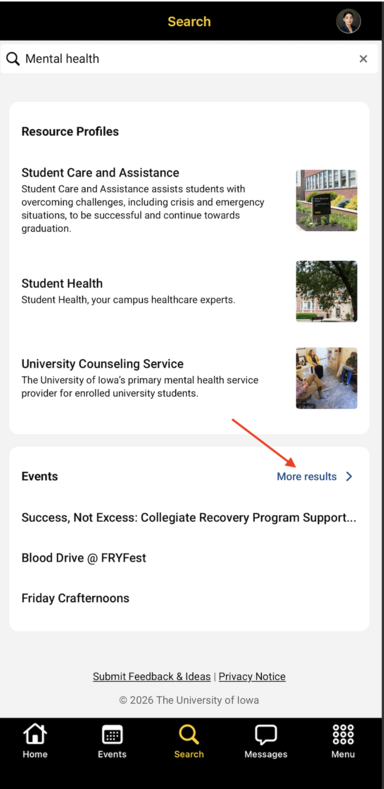
Use Search to find resources across the Iowa app by entering a keyword.
Search results are organized into categories, including:
- Resource Profiles
- Events
- Athletics
- Other available resources
Each category displays up to three results initially. Select More Results to view additional results and resources within that category.
Campus Events Enhancements
New Event Filters
Campus Events now includes additional filtering options to help you find events that are more relevant to you.
From the Campus Events landing page, select the Filter icon to open the filter options. You can now filter events by:
- Interest
- Event Type
Apply your filters to narrow the event list and find events that better match what you’re looking for.


All Sessions
For events with multiple sessions, an All Sessions option is now available in two places:
On the Campus Events event card:
Select All Sessions directly from the event card to see all available sessions for that event.

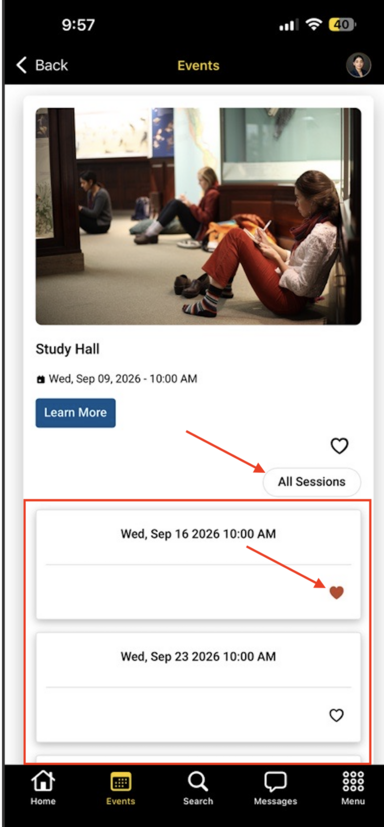
On the Event Details page:
A View All Sessions section appears at the bottom of the page when the event has multiple sessions.
From the sessions view, you can see all available sessions and favorite or register for an individual session.

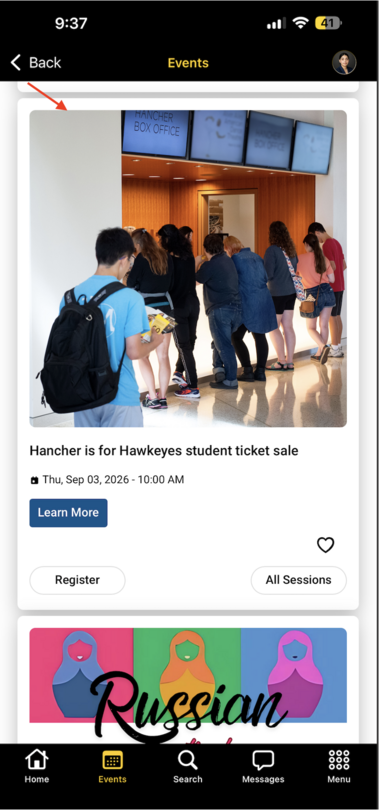
New Event Card Design
Campus Events now features a new event card layout.
The updated card displays:
- Event image at the top
- Event details below the image
- Learn More
- Favorite
- Register, when available
- All Sessions, when the event has multiple sessions
The new layout makes event information and available actions easier to see and use at a glance.
Free Food Opt-In Channel & Message Submission Workflow
We’ve introduced the foundational workflow for Opt-In Channels in the Iowa app, beginning with the Free Food channel.
Opt-In Channels provide a way for students to subscribe to specific types of timely information they’re interested in receiving. The new workflow also provides a controlled process for authorized members of the university community to submit messages to these channels.
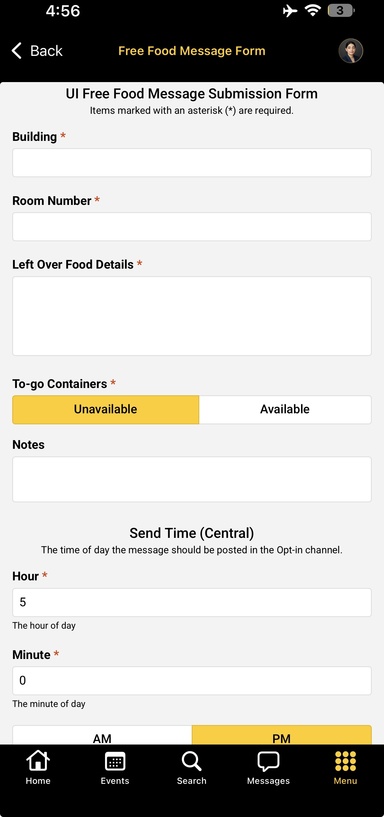
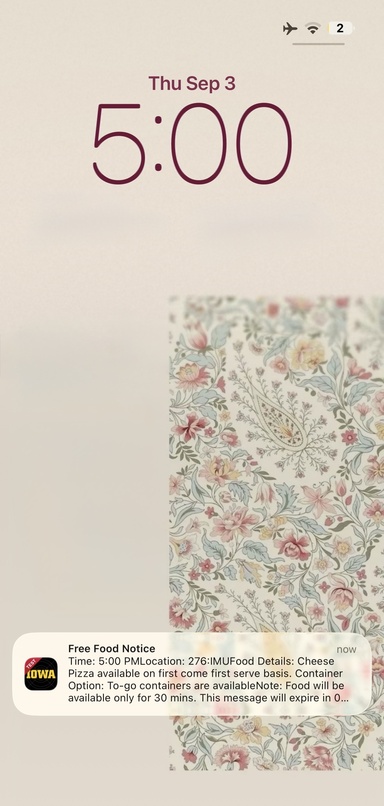
For the Free Food channel, approved users can now use the Free Food Message Form in the Iowa app to schedule notifications about available leftover food on campus.
How the posting workflow works
Posting to an Opt-In Channel is permission-based:
- A user first completes the designated approval process outside of the Iowa app to request permission to post to an Opt-In Channel.
- Channel administrators review the request and determine whether the user should receive posting access.
- Once approved, the authorized user can access the corresponding message submission form in the Iowa app.
- The user enters the required information and selects the scheduled time when the notification should be sent.
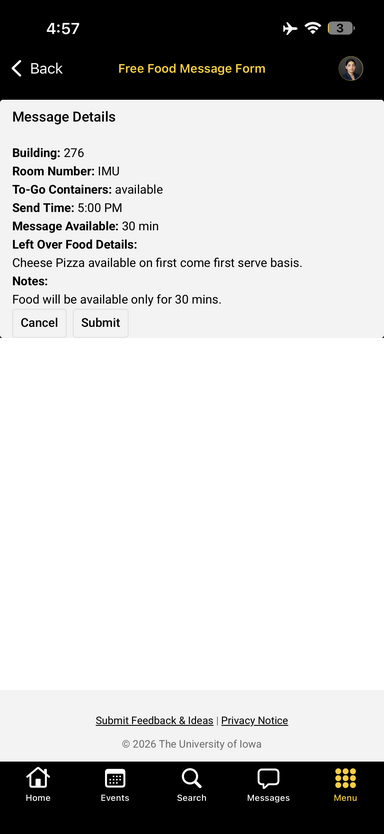
- Before submitting, the user can review the message details to confirm the information.
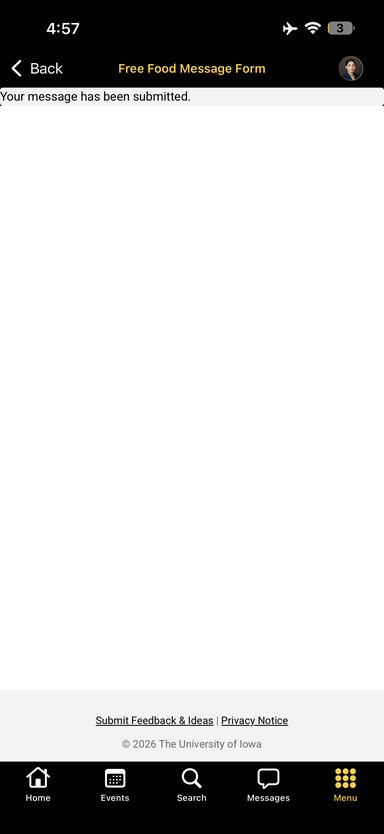
- Once submitted, the notification is scheduled for delivery to students who have opted in to receive messages from that channel.