Background
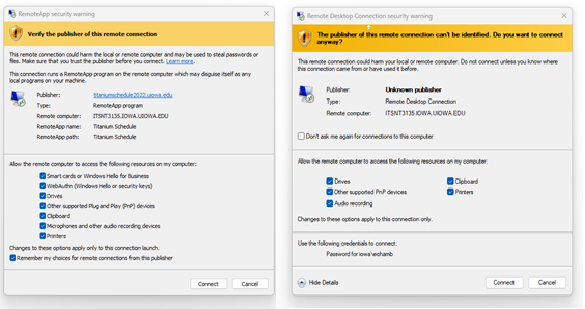
The April, 2026 Microsoft update to Windows brought these new warning messages that are meant to mitigate phishing attempts to gain access to user credentials, etc. This article is meant to explain why these message are displayed and now to manage them.
Certificates: In order for connections to be secure, Remote Desktop servers use "certificates". Certificates are digital documents that contain a digitial signature that's used to identify a server to client computers. Certificates expire on a regular basis and must be replaced with current certificates.
RDP Files: RDP files are used by Remote Desktop clients to know what Remote Desktop servers to connect to and what applications to run. They can be obtained by the web interface of a Remote Desktop server or simply emailed to users. These RDP files are digitally signed by certificates that are applied to Remote Desktop servers in order to secure Remote Desktop connections.
Resource Redirection: When connecting to a Remote Desktop service, local resources can be redirected to the remote session so you can interact with them while in the remote session. These include your local clipboard, printers, local drives and other resources.
The Warning Messages
These warning messages inform you of whether the RDP file has been digitally signed by a current certificate and will also ask you to configure what local resources should be available in your remote session.
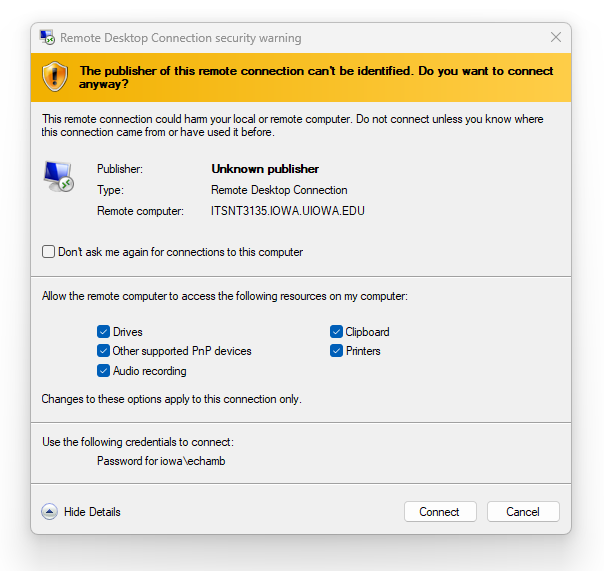
Unknown Publisher: If an RDP file you are using to connect to a Remote Desktop service is older, it may have been signed with a certificate that has expired. The RDP may also not have been signed at all. In these cases, you will see this message. Steps to update your RDP file, in order to make your connection trusted are below in this article, under the heading "How to obtain an RDP file that has been digitally signed by a current certificate".
Trusted Publisher: If an RDP file is newer and is signed by the current certificate, you will see this message, but only the first time you connect from a given client computer:
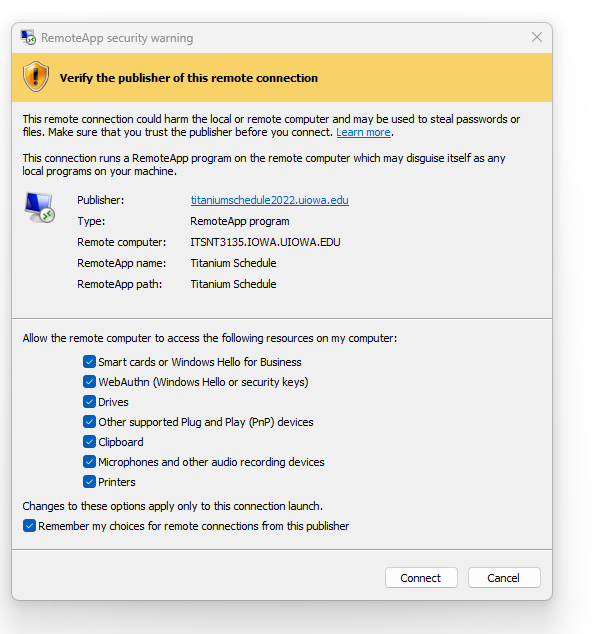
If you see this message, select the resources you would like to interact with in the remote session and click "Remember my choices for remote connections from this publisher".
How to obtain an RDP file that has been digitally signed by a current certificate
The easiest way to obtain a new RDP file is to log into the web interface (RDWeb) for the Remote Desktop service and download a new RDP file.
The web interfaces for some of the more widely used Remote Desktop services are as follows:
- RemoteAdmin: http://remoteadmin2019.uiowa.edu/rdweb
- Titanium Schedule: https://titaniumschedule2022.uiowa.edu/rdweb
- RRDS: https://rrds2022.uiowa.edu/rdweb
Contact support staff for the service in question if it isn't listed above.
Instructions
- Browse to the URL of the Remote Desktop service, listed above.
- Login with your account you use to connect to the service with format "iowa\hawkid" as username.
- After successful login, click the icon for the application you want to connect to.
- This will start a download of an RDP file. When saving the file, rename it from the default name to a friendly name like "RemoteAdmin" or "Titanium Schedule" and save the new RDP file to where you have your old RDP file saved, replacing the file.
The server should now be trusted when you connect using this new RDP file.
- The first time you connect, you will be able to pick what resources you would like redirected to the remote session.
- If you check the box next to "Remember my choices...", it will not ask you again.
- When the server certificate expires (it could be anytime up to 200 days), you will see the "Unknown Remote Connection" message again. Simply repeat the steps above to obtain a new RDP file.