Review the following categories to manage your Two-Step profile and enrolled devices.
How to add a new device to Duo Mobile
How to add a new device to Duo Mobile
Follow these instructions to add a new mobile device or token to an existing Two-Step Login account.
Log into the Account Center using your HawkID and the Two-Step method.
Once logged in, choose “Phone/Tablet” from the “Add Device” dropdown.
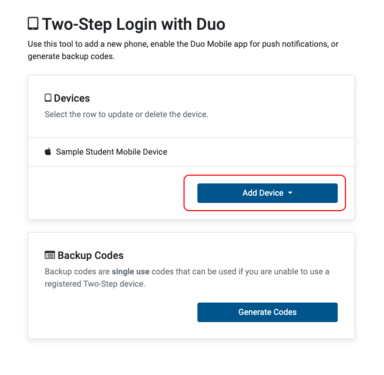
To add a new mobile device
1. Enter a descriptive label for your device.
2. Follow instructions for setting up Duo Mobile. If you haven’t already installed the app on your device, install it now.
3. Open the Duo Mobile app and scan the QR code. (If you are working from the same mobile device you want to add, click the “Add Duo Account” button.)
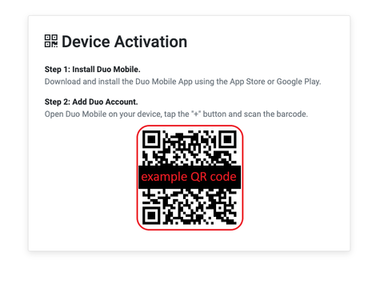
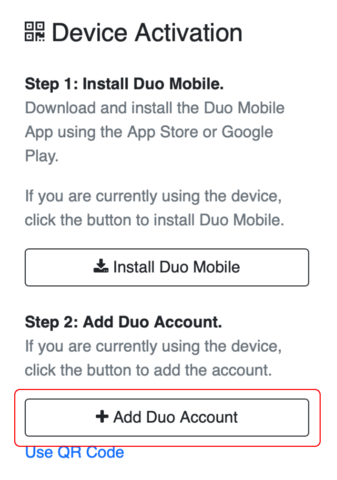
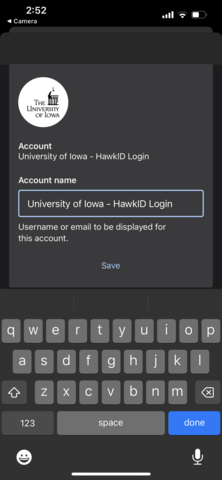
4. Duo Mobile will create an account for your University of Iowa logins. Tap Save.
5. Click “Verify Duo Push” to send a push notification to Duo Mobile on the device you’re adding. Open Duo Mobile and tap the green “Approve” button.
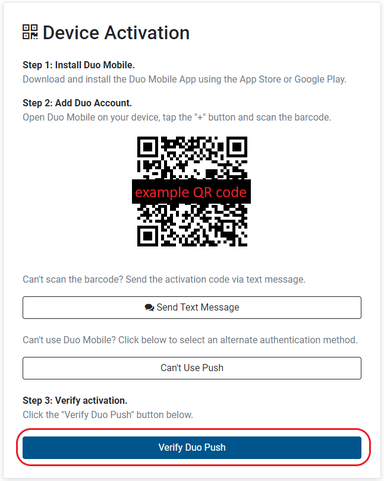
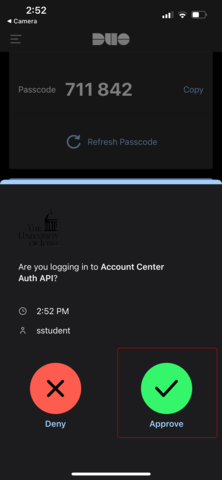
6. You’ve now added a new mobile device and can select it from available options to verify your logins.
Adding a token device requires entering information associated with a hardware token device you’ve been provided. Learn more about requesting token devices.
How to delete an old device
How to delete an old device
To delete a device from Two-Step Login:
- Log into the Account Center using your HawkID and the Two-Step method you’ve previously set up.
Click on the device you want to delete. Then click on "Delete this Device."

Last updated
Article number
4046