You can now easily create online meetings in Outlook and have Teams be the default meeting method. Outlook also has an option to make a meeting "In-Person" (new versions only)
Changing your settings for online meetings with Teams by default :
Outlook for Windows (Classic)
- Choose File | Options | Calendar
- In the "Calendar options" section, click the checkbox for "Add online meeting to all meetings"
- Click Meeting Providers
- Select Microsoft Teams
- Click OK to save changes
All of your new meetings will include a Microsoft Teams link for attendees to join the meeting. You will see the Teams information when you are creating the new meeting.
Outlook for Windows (New)
- Click Settings (gear icon)
- Click Calendar
- Click Events and Invitations
- In the "Events you create" section, click the checkbox to "Add online meeting to all meetings"
- Select a meeting provider (Microsoft Teams)
- Click Save.
All of your new meetings will include a Microsoft Teams link for attendees to join the meeting. You will not see the Teams information until after the invite is sent.
Outlook for Mac (New)
- Click Outlook | Preferences | Calendar
- In the "Calendar Options" section, click Configure for the "Add online meeting to all events" setting.
- Select your account on the left side of the box and in the right side, click the checkbox for "Add online meeting to all meetings"
- Select Microsoft Teams
- Click Save.
All of your new meetings will include a Microsoft Teams link for attendees to join the meeting. You will not see the Teams information until after the invite is sent.
Outlook for Mac (Legacy)
- Click Outlook | Preferences | Calendar
- In the "Calendar Options" section, click the checkbox for "Add online meeting to all meetings ("
- Select Microsoft Teams
- Click Save.
All of your new meetings will include a Microsoft Teams link for attendees to join the meeting. You will not see the Teams information until after the invite is sent - you will see a message that says "Teams details will be added after you send invite"
In-Person Meetings (Outlook for Windows (New) and Outlook for the web only)
- Create a new meeting
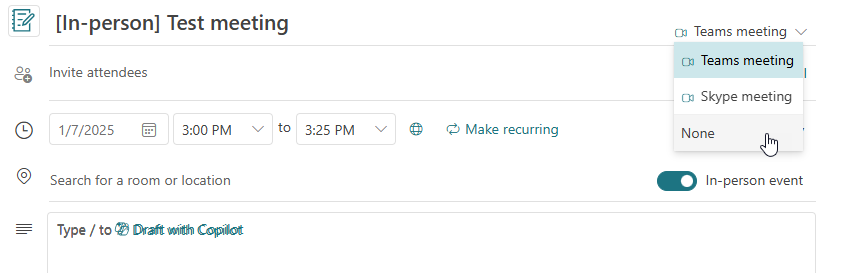
- Select the toggle button and move to On for In-Person event.
If you have default online meetings turned on, click the down arrow next to Teams meeting and click None
- Add the attendees and any other needed information
- Click Send
The meeting will appear with the subject [In-Person] so the attendees know right away that they should plan to attend in the office