Getting Started
Accessing Copilot in PowerPoint
Copilot Access Points
You can access Copilot in PowerPoint from the Copilot button in the ribbon or from the Copilot pane within a presentation. The exact location and available options may vary depending on whether you are using PowerPoint for the web, Windows, or Mac.
To get started:
1. Open PowerPoint and sign in with your HawkID.
2. Open an existing presentation or create a new one.
3. Select Copilot from the ribbon or Copilot pane.
4. Enter a prompt describing what you want Copilot to create, revise, summarize, or explain.
Depending on your version of PowerPoint and your license, Copilot can help with tasks such as:
- Creating a presentation from a prompt
- Creating a presentation from an existing file
- Adding a new slide
- Rewriting or refining slide text
- Summarizing a presentation
- Asking questions about a deck
- Creating or replacing visuals
- Adding speaker notes
- Helping shape content around a template or brand style
Example prompts:
- Create a 6-slide presentation about [topic] for [audience].
- Create a presentation from this file and focus on the timeline, risks, and next steps.
- Add a slide that summarizes the main takeaways.
- Rewrite this slide so it is shorter and easier to present.
- Summarize this presentation and identify any slides that may need more context.
- Add speaker notes for this slide.
Always review Copilot-generated slides, speaker notes, images, and summaries before sharing or presenting.
Use the Interaction Tools in Prompt Window
Using files, prompts, and images with Copilot
Copilot works best when you give it clear context. Depending on your PowerPoint version and license, you may be able to reference a file, use suggested prompts, ask Copilot to add or revise content, or work with images and visuals.
When using files with Copilot:
- Use files you have permission to access.
- Use clear source documents with headings or sections when possible.
- Tell Copilot which part of the file to focus on.
- Review the slides after Copilot creates or updates them.
Example prompt:
Create a presentation from this project plan. Focus on the timeline, risks, key decisions, and next steps. Keep the slides concise and include speaker notes.
If you are working with images or visuals, review the result carefully before sharing. Make sure the image is appropriate, accurate, accessible, and permitted for your use.
Using Claude or other model options in PowerPoint
Using Claude or other model options in PowerPoint
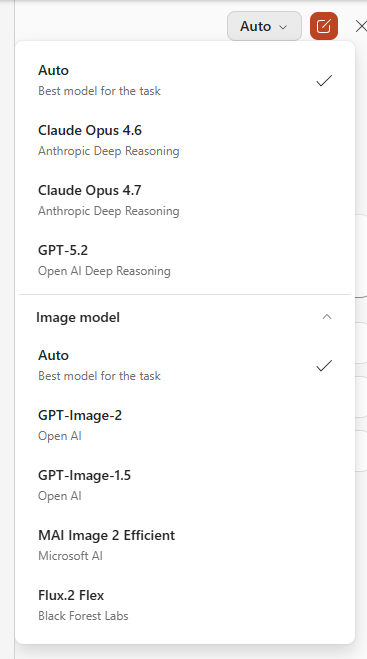
Claude (Opus) may be available as a model option when using Copilot in PowerPoint to make changes directly in a presentation. Available options may include Auto, Claude, or ChatGPT.
If the model switcher is available, leaving the model choice in Copilot set to Auto is a good default for most everyday work. Different models can produce different results for the same prompt.
Your model choice may only apply to the active session.
PowerPoint may also show a separate Image model section for image creation or image editing tasks. In that section, you may see options such as Auto, GPT Image, Flux, or other available image models.
Speaking with Copilot
Some Copilot experiences may support voice input. Availability varies by platform, app version, and rollout. If a microphone option is available in your Copilot prompt box, you can use it to ask a question out loud. Review the written response before using it in your presentation.
Creating and revising presentations
Copilot can help create a new presentation, add slides to an existing deck, revise slide content, or summarize a presentation.
For better results:
- Start with a clear topic, outline, or source file.
- Tell Copilot the audience and purpose of the presentation.
- Use a PowerPoint template when visual style matters.
- Ask for speaker notes if you plan to present the deck.
- Review the final slides before sharing.
Example prompt:
Create a 7-slide presentation for department staff about [topic]. Include a title slide, three content slides, one slide with risks or questions, one slide with next steps, and speaker notes for each slide.
After Copilot generates slides, review the content and use follow-up prompts to revise, shorten, reorganize, or add missing details.
Tips for better PowerPoint results
Copilot works better when your request includes the audience, purpose, source material, and desired format.
Helpful details to include:
- Who the presentation is for
- What the presentation should help people understand or do
- Which file or source material Copilot should use
- Whether the tone should be formal, conversational, brief, or detailed
- Whether you want speaker notes
- Whether the deck should follow a template or brand style
Example prompt:
Create a 5-slide presentation for staff who are new to this process. Use the attached document as the source. Focus on what is changing, what users need to do, and where to get help. Keep the tone clear and practical, and include speaker notes.
Need Help?
Need Help?
If you have questions about how to get started or would like some advice on how AI can assist you with work tasks, please contact the Emerging Technologies Team.
We’re here to support your success with AI-powered tools at the University of Iowa!
For additional information on AI tools and AI guidelines here at the University of Iowa, check out the resources below: