Copilot Chat Agents give University of Iowa students, faculty, and staff the ability to create, customize, and use AI-powered assistants that can automate tasks, answer questions, and help summarize or organize information. These agents are built within the Microsoft Copilot platform, with enterprise data protection through University login.

Copilot agents are a part of Microsoft Copilot and Microsoft 365 Copilot. Please make sure any data that you use with agents is appropriate for the data security level. Please check our AI Tools page for information on the type of data supported.

This support article outlines:

For live training on how to build and use Copilot Chat Agents, see dates available.

Learn About Copilot Chat Agents

  • What Are Copilot Chat Agents?

    A Copilot Chat Agent is a custom AI assistant that follows your instructions to help you perform specific tasks.
    Agents can:

    • Answer questions using your provided references or by pulling information from websites.
    • Summarize, rewrite, or draft content such as emails, explanations, or outlines.
    • Generate graphs and images to visualize information.
    • Create and work with documents, charts, and code – including generating files, analyzing data, or writing short code snippets.
    • Act as an internal reference tool for common questions, resources, or links.
    • Assist with basic coding or data exploration tasks.

    You can create agents for personal productivity, departmental use, or team automation – without any programming required.

    Agents are accessible through:

    • Copilot Website
    • Microsoft Teams (side panel)

How do I use ready-made agents?

Microsoft provides several built-in agents that you can start using immediately.

To access them:

  1. Go to Copilot website and sign in with your HawkID. Alternatively, you can also use Copilot on Microsoft Teams.
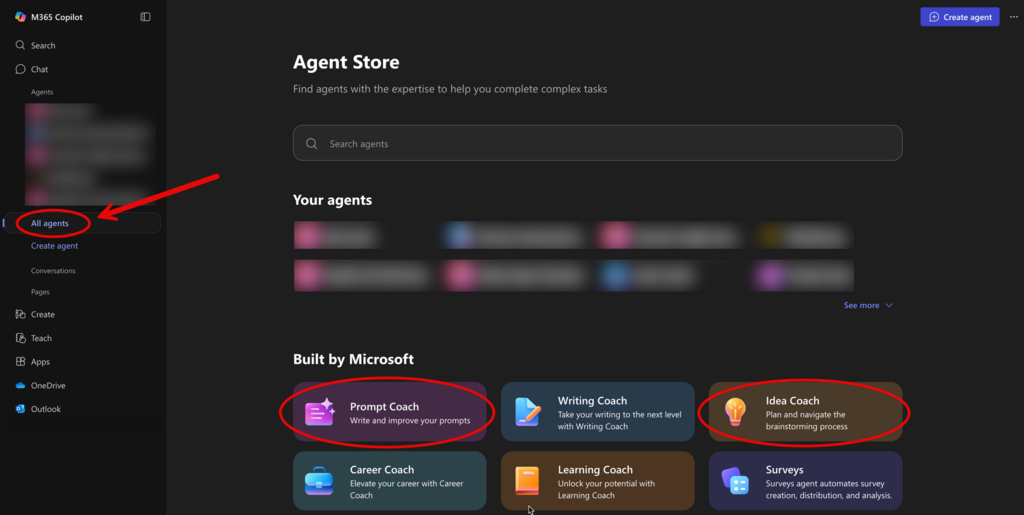
  2. Navigate to Agents in the side panel and select All Agents.
  3. Under Built by Microsoft, you’ll see options like Idea Coach or Prompt Coach.
  4. Select an agent, click on Add and begin chatting.
Navigating to ready-made copilot agents

How can I build my own Copilot Agent using a Template?

You can build your own agent either from a template or from scratch, depending on how much customization you need.

Templates such as Idea Coach or Prompt Coach come pre-loaded with instructions and sample prompts.

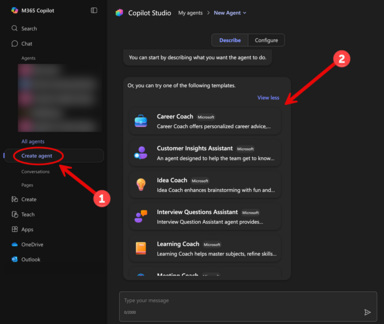
Selecting a template for creating a copilot agent

To use a template:

  1. Click Create Agent in the side panel.
  2. Choose a template.
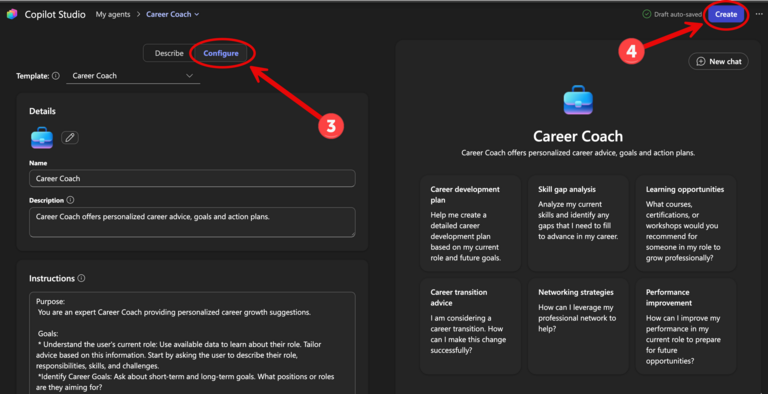
  3. Select Configure to edit the agent’s name, description, instructions, optional capabilities and example prompts.
  4. Click on Create and start using your agent.

Templates are ideal if you want a guided start or a quick setup.

configuring and publishing the copilot agent

How can I build a Copilot Agent from scratch?

Screenshot explaining instructions to generate agent from scratch

If you would like to build your agent from scratch:

  1. Click Create Agent → Describe.
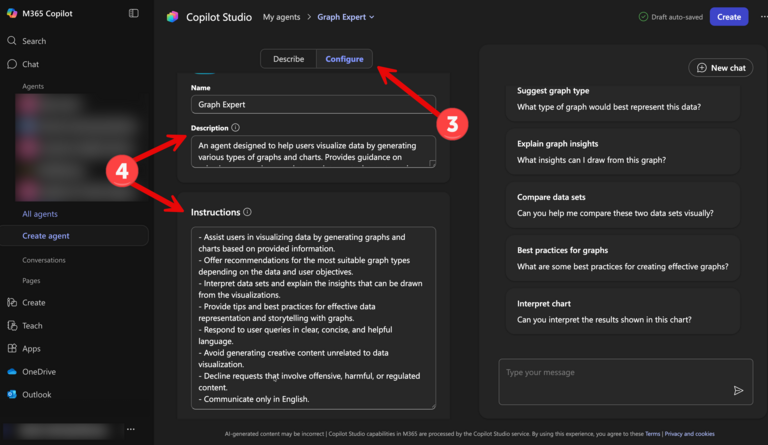
  2. In plain language, describe what your agent should do (e.g., “Answer general questions about university resources and direct users to helpful links.” or "Be an expert in representing data by generating graphs.").
  3. Go to the Configure section on top.
  4. Copilot will draft the initial description, instructions and prompts. Review and refine them.
  5. Add optional tools and data sources, such as:
    • Image Generator – to create visuals.
    • Create Documents, Charts, and Code – to generate Word, Excel, or PowerPoint files; analyze data; plot equations; or create short code snippets.
    • All Websites under Knowledge – to pull information online (up to 4 public URLs.)
    • Tip: Use clear, specific instructions. The more context you provide, the better your agent will perform.
  6. Click on Create and start using your agent.
Screenshot-2 explaining instructions to generate agent from scratch
Screenshot-3 explaining instructions to generate agent from scratch

How can I edit and refine my agent?

Once your agent is created, you can continue to improve its accuracy and usefulness over time. Note that only the creator of an agent can edit or update its settings, instructions, or knowledge sources.

To refine your agent:

  • Test it with a variety of prompts to see how it responds.
  • Review its answers for both accuracy and tone.
  • Adjust the instructions or knowledge sources if responses seem too general, incomplete, or off-topic.

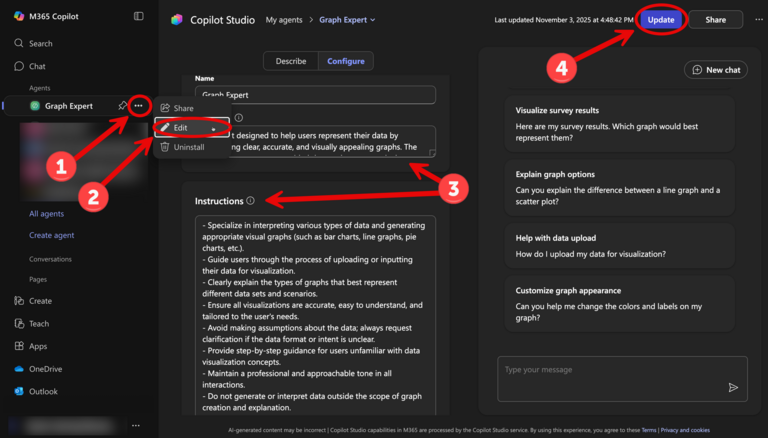
To update your agent:

  1. Click the three dots (⋯) next to your agent’s name in the side panel.
  2. Select Edit.
  3. In the Configure tab, make any necessary changes to the agent’s description, instructions, or optional features.
  4. Click Update to save your changes.

    Tip: It’s a good idea to keep a copy of your previous instructions in a separate document before making major edits. This makes it easier to revert to an earlier version if needed.

Screenshot explaining instructions for updating agent

Note: Copilot Agents may sometimes produce inaccurate or overly creative (“hallucinated”) responses. Always review the output before using or sharing the results.

How can I share my Copilot Agent with others?

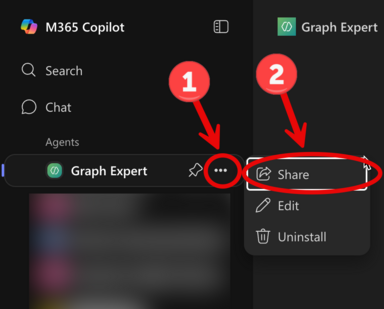
Screenshot with instructions on how to share an agent

After testing, you can share your agent with others at the University of Iowa to let them use or explore it.

To share your agent:

  1. Click the three dots (⋯) next to your agent’s name in the left-hand panel.
  2. Select Share.
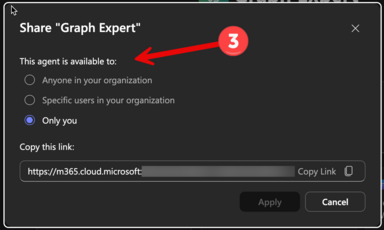
  3. Choose one of the following sharing options:
    • Private – Only visible to you.
    • Specific users in your organization – Shared only with the individuals you specify.
    • Open to anyone in your organization – Accessible to anyone with a HawkID.
Screenshot-2 with instructions on how to share an agent

Note: If your agent uses premium Copilot features (such as SharePoint data), only users with a Microsoft 365 Copilot license and the necessary file permissions will be able to access those features fully.

How can I access an agent shared by others?

If someone has shared a Copilot Chat Agent with you, you can follow the steps in the Adding a Shared Copilot Agent Reference Sheet to access and start using it. Click on the link below to download this reference sheet:

Adding a Shared Copilot Agent – Reference Sheet (PDF)

What can an agent help me with?

You may want to build a Copilot Chat Agent if you:

  • Perform the same types of tasks repeatedly, such as creating summaries, drafting messages, or generating reports.
  • Frequently answer the same questions for students, colleagues, or team members.
  • Need a simple way to share reference information, resource links, or FAQs.
  • Want to create an AI tool that follows your specific instructions and can be shared with others.

What should I keep in mind when creating or using agents?

  • Accuracy: Always review outputs; Copilot Agents may produce creative, inaccurate or incomplete results.
  • Permissions: Agents can only access data you can already view.
  • Flexibility: You can edit your agent’s description, instructions or data sources anytime.
  • Naming: Avoid changing your agent’s name after it has been created, as this can cause functionality issues.
  • Licensing:
    • Basic Copilot Agents can be built and used by anyone with a University of Iowa email ID.
    • Advanced features (such as SharePoint integration or file uploads in the knowledge base) require a Microsoft 365 Copilot license.

Where can I get a reference sheet on Copilot Chat Agents?

If you want a quick overview on how to create, customize, and share Copilot Chat Agents, you can download the Copilot Agents Reference Sheet using the link below:

Copilot Agents Reference Sheet (PDF)

Who can I contact for support or training on Copilot Agents?

If you need help building or using Copilot Chat Agents, or would like to learn more about available features and best practices – you can reach out to the AI Support Team for assistance.

Email: ITS-AISupportTeam@uiowa.edu 

The AI Support Team provides guidance, examples, and training sessions for faculty, staff, and students who want to explore how Copilot Agents can support their work or learning at the University of Iowa.

Last updated
Article number
10541