No Dial Pad
No Dial Pad
If you're not seeing a dial pad in Teams, either you're not licensed for Enterprise Voice (Teams Phone) or our Teams tenant and/or your local Teams client isn't recognizing your license. If you know you have Teams Phone (your local desktop support and/or the ITS Unified Communications team can verify this for you), it is highly recommended to start by fully closing Teams and re-opening the program.
How do I fully close Teams?
How do I fully close Teams?
Often when troubleshooting, you'll be asked to fully close Teams. However, simply closing your Teams window will not do this as the program will continue to run in the background. You can fully close Teams by going to the system tray, right-clicking the Teams icon and select "Quit Teams". You can also used Task Manger (Ctrl+Alt+Delete) and stop the program there. The tried and truth method of restarting your computer will also accomplish this.
Fully closing Teams is often the first step when troubleshooting Teams woes, be the issues telephone related or not
How do I clear Teams cache?
How do I clear Teams cache?
If fully closing the program doesn't solve things, clearing your local Team's profile's cache is the next step. Go to Windows 11 settings --> Apps --> Installed Apps --> Microsoft Teams --> Advanced Options --> Reset.
Reset there are two options: one will attempt to repair the software and one will clear the app's data. It is recommend to try both. NOTE: Be sure that Teams is fully closed prior to doing either of these things.
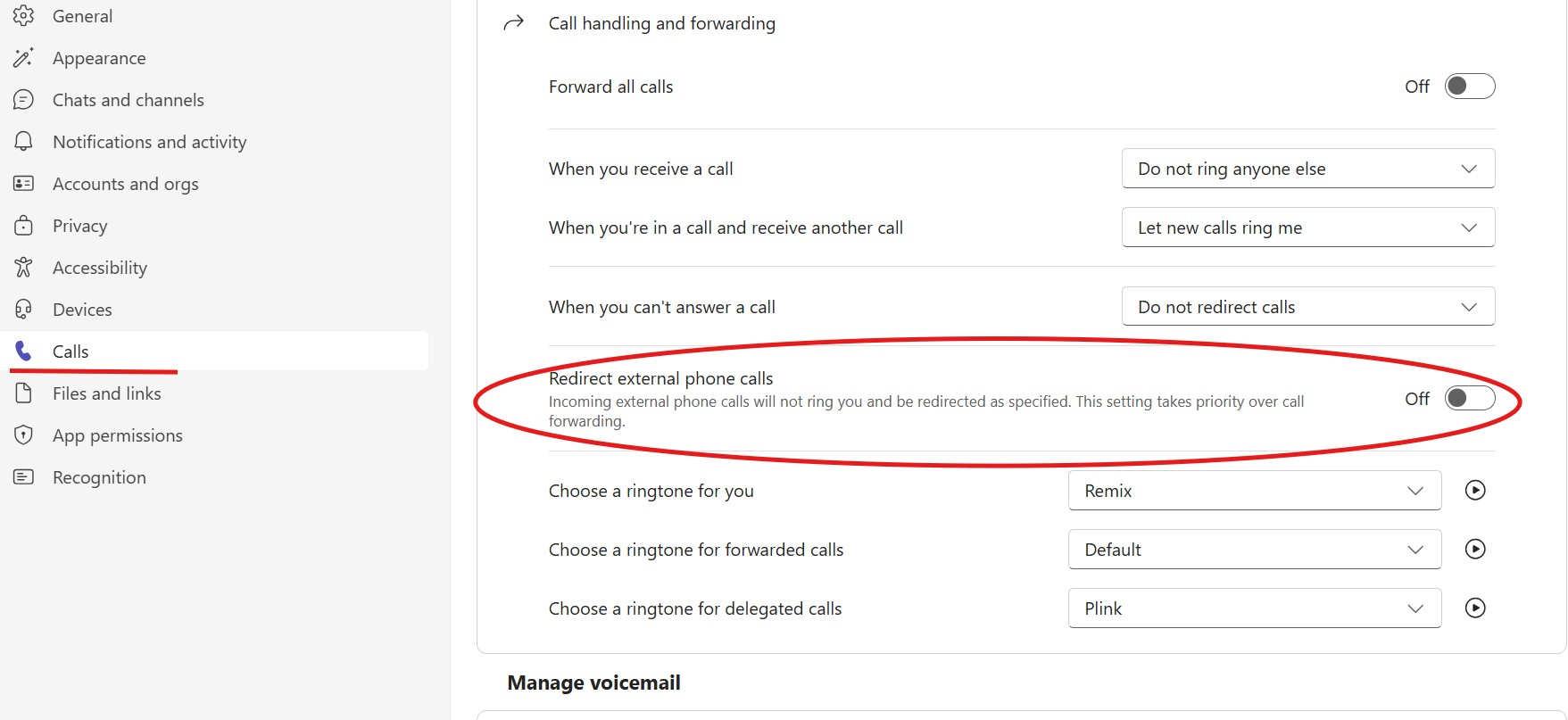
All External Calls are Routing to Voicemail
All External Calls are Routing to Voicemail
There is a setting you should verify in Teams if you're seeing this happening. Go to Settings --> Calls --> make sure this toggle switch is set to Off:
Teams Client
Teams Client
To insure optimal performance and assure you have all features of the program available to you, it would be a good idea to keep your Teams client up to date. Contact the ITS Help Desk or your local desktop support of best practices on how to achieve this.
Network
Network
Teams requires a strong connection to the network as well as being connected to a network with enough bandwidth to handle tasks. Typically, this isn't an issue when on campus, but you may experience some issues when using Teams while moving across campus as your device disconnects and reconnects to the various access points we have on campus. If you believe you're experiencing network issues on campus where you are working, contact the ITS Help Desk and they can begin the investigation.
The same goes for our remote staff. You'll want to make sure that your home network is strong. You can do this by insuring that you're using home networking equipment that is fit for modern work needs and making sure that the firmware for said devices are up to date. Also, you'll want to be sure that you're working in a location in which your devices have a strong connection with your network and that your Internet Service Provider is providing speeds fast enough for modern work.
Devices
Devices
You'll want to make sure any devices you're using with Teams have the right software and specs to handle the rigors of modern work life. Work with your local desktop support or whomever handles your equipment purchases in your department to verify the equipment you're using meets these needs.
As far as communication peripherals, you'll want to make sure that you're using Microsoft compatible devices, making sure that the software for said devices are up to date, and making sure that both Teams and your operating system are set correctly for these devices to be used and function properly within Teams. The ITS Help Desk and/or your local desktop support should be able to help you with this.
Last updated
Article number
4256