Polycom Desk Phones provide essential telephone functions for VoIP telephony users. The pull-down menus below provide access to Quick Start guides and login information.
Login to your Polycom Phone
Login to your Polycom Phone
Polycom Phone Login Overview
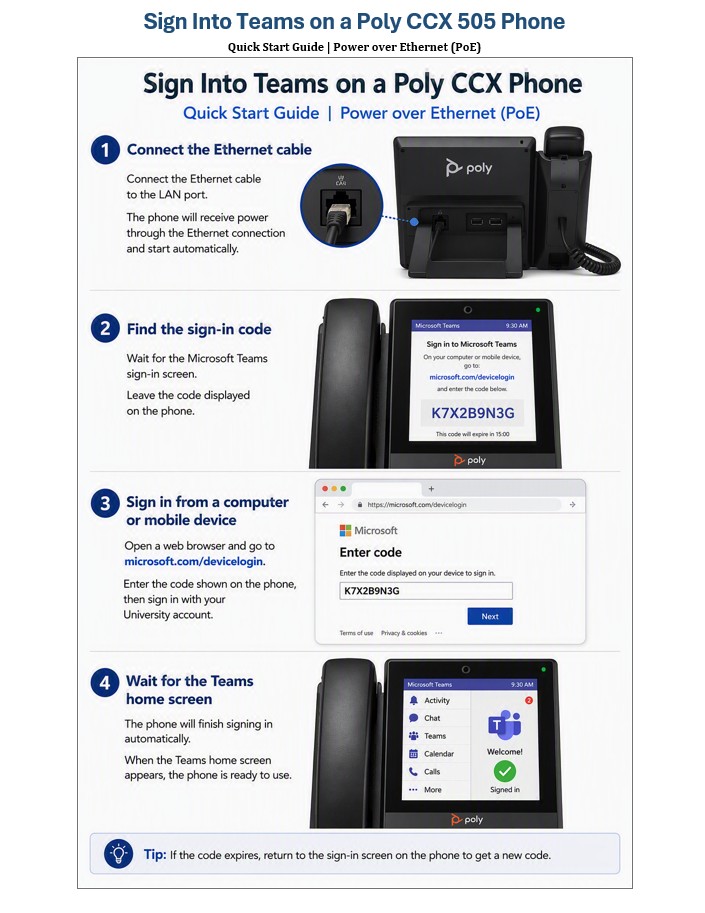
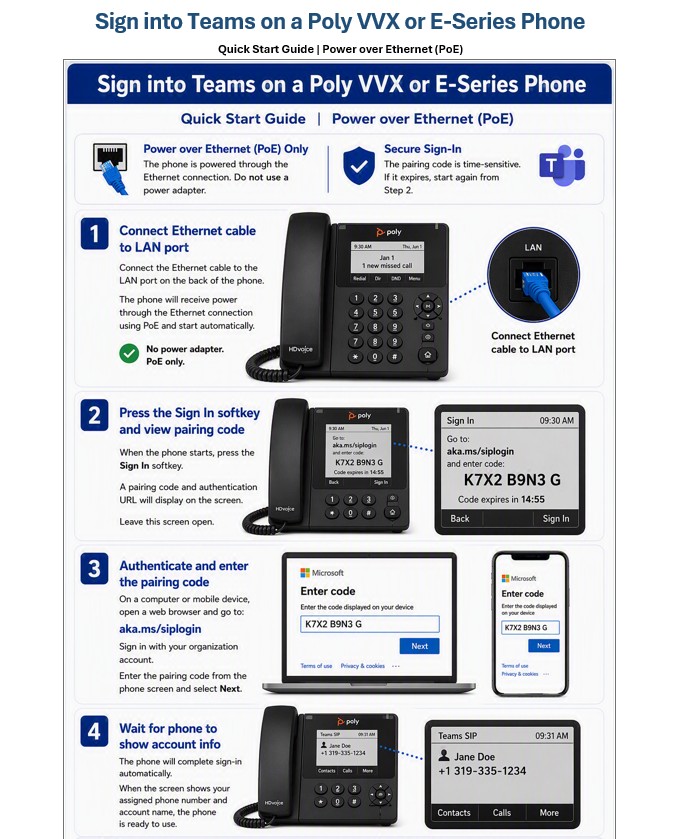
In order to use your Polycom phone with your personal account, you must sign into the phone.
Login on Teams on CCX Phones
Login Using your a VVX or E-Series Phone
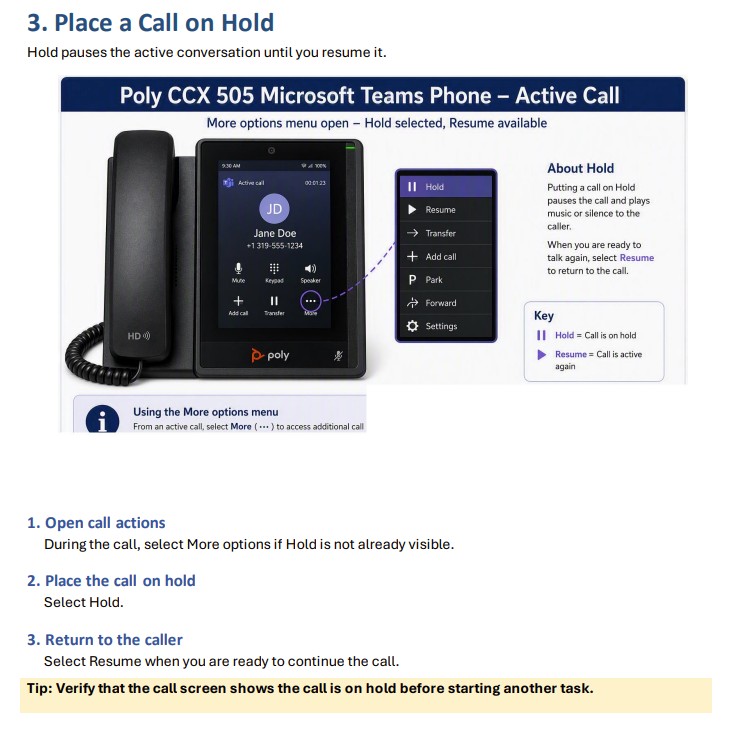
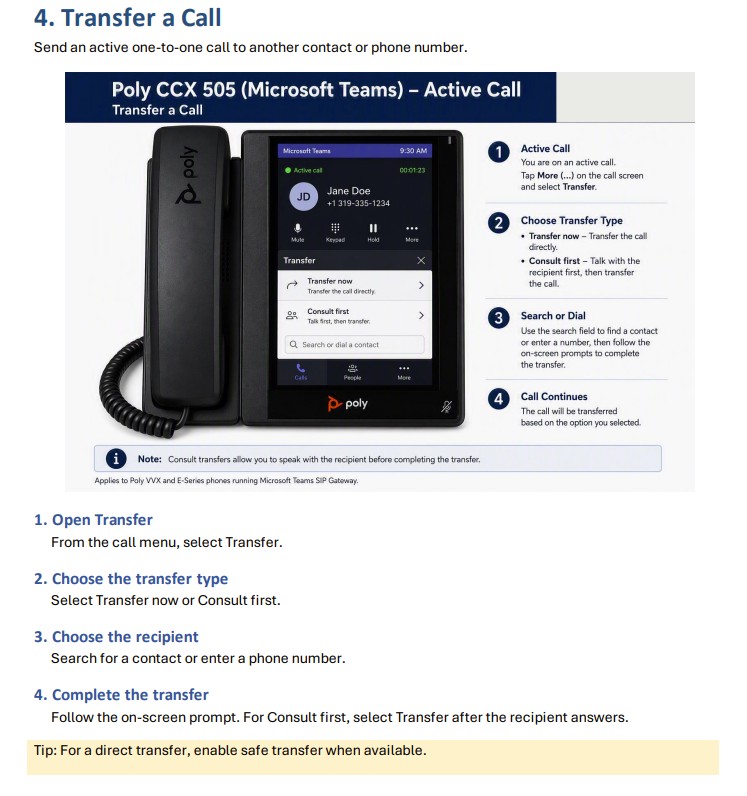
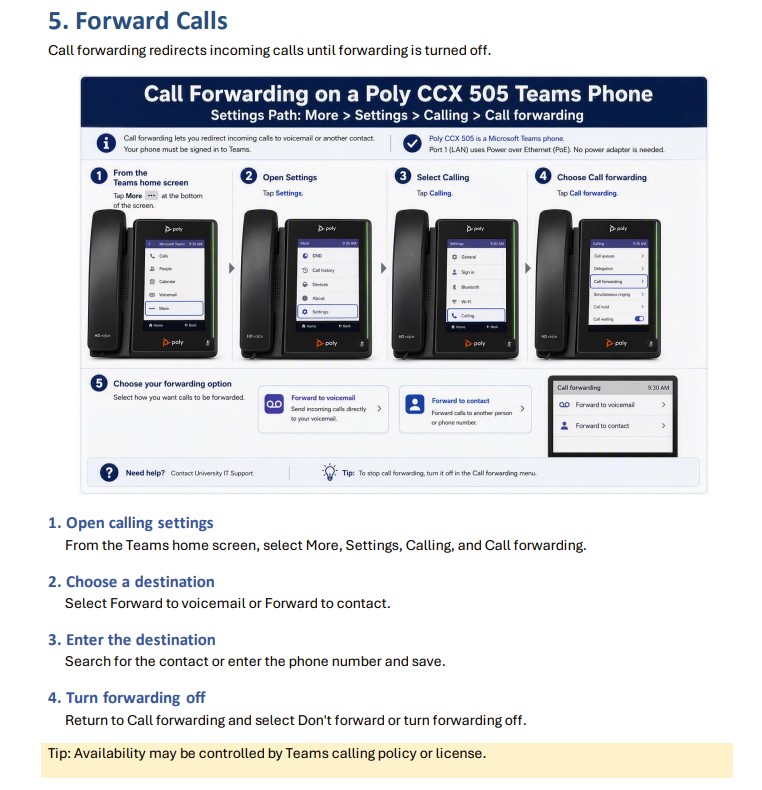
CCX Phone Quick Start Guides
CCX Phone Quick Start Guides
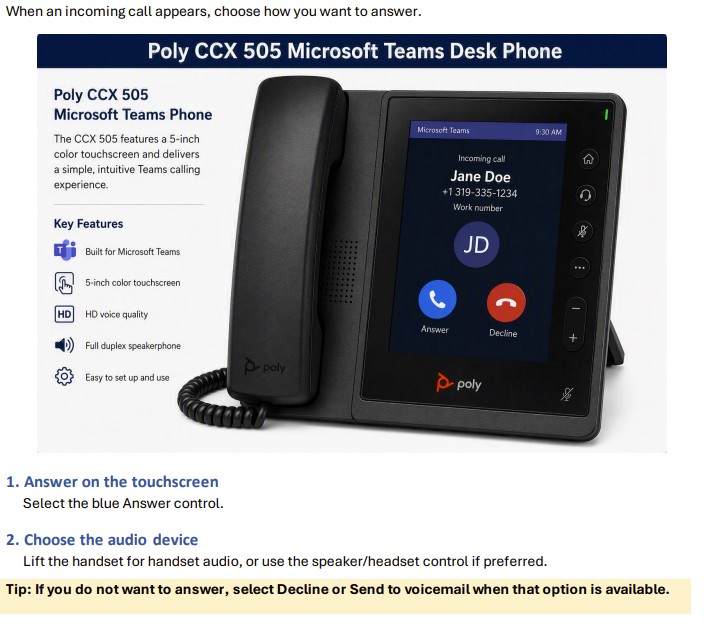
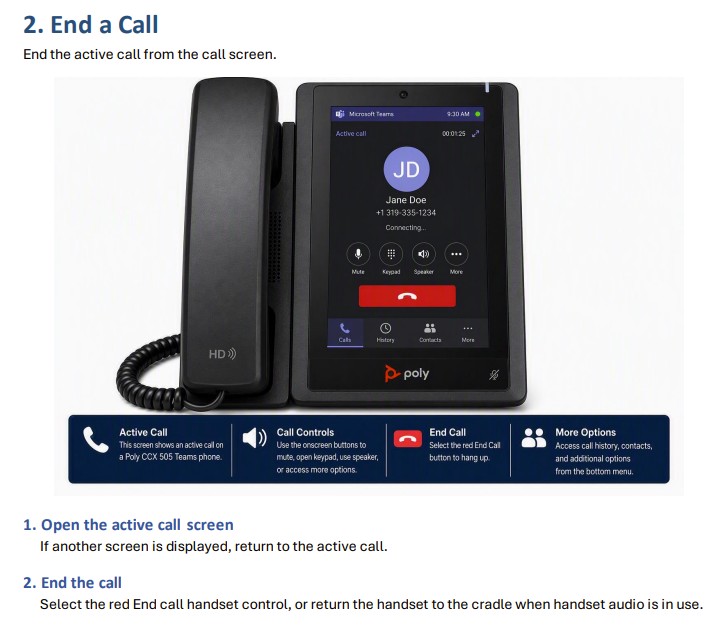
The resources below provide instructions for functions such as:
Answering a call
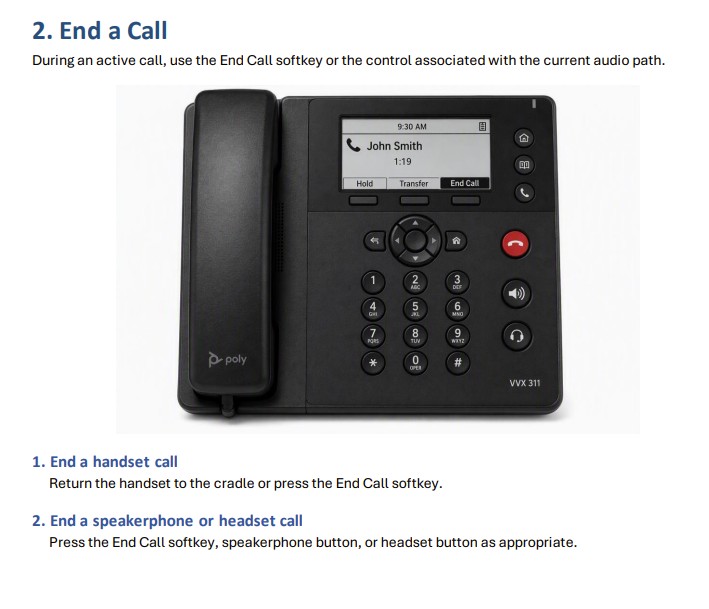
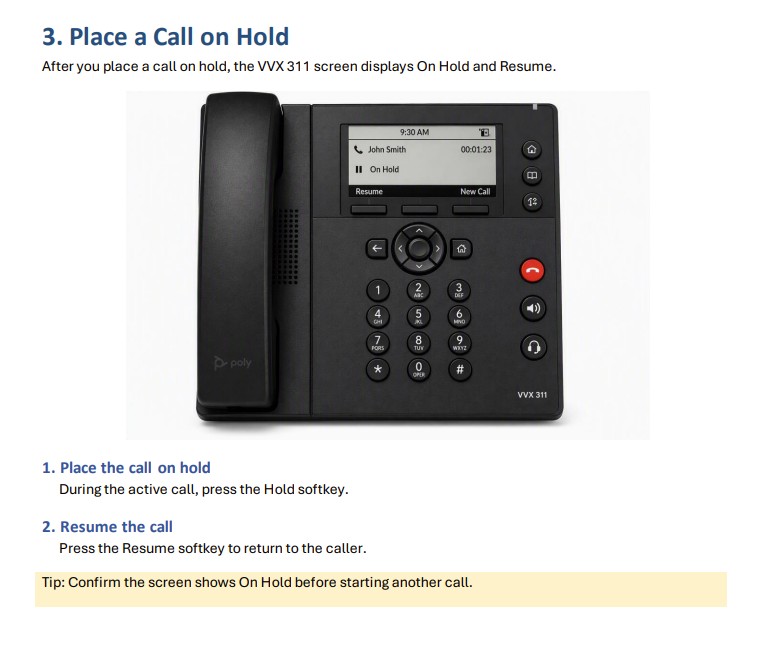
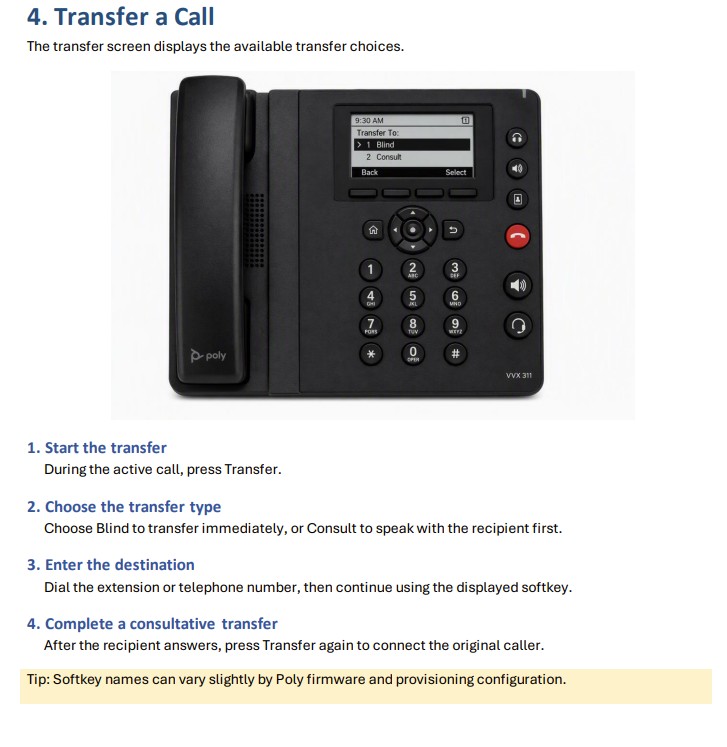
VVX Phone Quick Start Guides
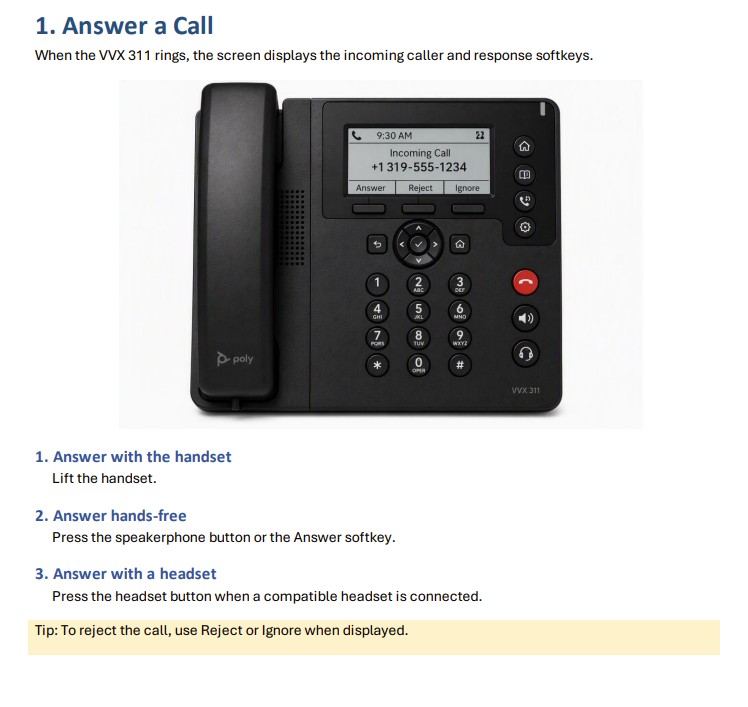
VVX Phone Quick Start Guides
The resources below provide instructions for functions such as:
Answering a call
Departmental Accounts
Departmental Accounts
Not all phones are matched with an actual person. There are many departmental accounts across campus that use these phones. If you need a departmental account signed in, create a Halo ticket and assign it to the Unified Communications team with the MAC address of the phone (this can be found on the bottom of the phone near the bottom) and the number you'd like associated with the phone (if it is an existing number). The team will be able to get the phone signed in from there and will reach out if they need further assistance.
Last updated
Article number
5006