- Enter your HawkID and password to access an application (Employee Self-Service, MAUI, ICON, MyUI, Office 365, etc.) with Two-Step Login enabled.
- Complete your login using your mobile phone or other device. Duo Mobile will automatically send you a push notification to approve. ITS requires the Duo Mobile app (available for smartphones and tablets) for all users.
You will have the option to trust the browser if it is your device.

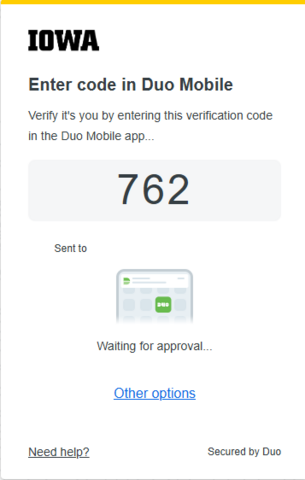
- Verified Duo Push will display a code on the webpage to be entered into the Duo Mobile app.
Clicking "Yes, this is my device" will identify the computer and web browser you’re using as a trusted device. You’ll be able to log in with only your HawkID and password whenever you use the same computer/browser combination over the next 30 days.
Pay attention to requests
If you receive a Two-Step Login verification request when you’re not attempting to log in, be sure to deny the request. It could indicate that an unauthorized user is trying to access your account.