Getting Started
Accessing Copilot in Excel
Copilot inside Excel requires a Microsoft 365 Copilot license. Copilot Chat is available more broadly at Iowa, but Copilot Chat alone does not provide the full Copilot experience inside Excel.
To use Copilot in Excel:
- Sign in with your University of Iowa HawkID and password.
- Open Excel on the web or the Excel desktop application.
- Open a workbook saved in OneDrive or SharePoint when possible.
- Look for the Copilot icon on the Home tab, in the lower-right area of the workbook, or near selected cells.
If Copilot does not appear in Excel, check whether you have the Microsoft 365 Copilot license and whether the workbook is saved in a supported location and file format. Microsoft’s current setup guidance is available at Get started with Copilot in Excel.
Before you use Copilot with a workbook
Copilot works best when the workbook is saved in OneDrive or SharePoint and AutoSave is turned on. Microsoft also recommends using a supported Excel file type, such as .xlsx, .xlsb, or .xlsm, and formatting your data as a table or supported range.
Before using Copilot with important data:
- Save the workbook in OneDrive or SharePoint.
- Turn on AutoSave when using the Excel desktop app.
- Use a supported Excel file type, such as .xlsx, .xlsb, or .xlsm.
- Format your data as a table or supported range when possible.
- Consider working from a copy when the workbook is sensitive, complex, or business critical.
Microsoft releases Copilot updates at different times, so a feature shown in Microsoft documentation or a training session may not appear for every user right away.
What Copilot can help with in Excel
Copilot in Excel can help with common spreadsheet work, including:
- Asking questions about data in a workbook
- Creating or explaining formulas
- Highlighting, sorting, or filtering data
- Summarizing information in a sheet
- Creating charts or PivotTables
- Identifying trends, outliers, or patterns
- Working with text-based data, such as comments or survey responses
- Creating or revising workbook elements, such as tables, dashboards, or trackers
The prompts below are starting points. Adjust them to match your workbook, worksheet names, table names, columns, and goal.
- Summarize the main patterns in this workbook.
- Explain the formula in this selected cell.
- Add a formula that calculates the total cost.
- Create a PivotTable that summarizes registrations by department.
- Create a chart that shows the monthly trend.
- Highlight values greater than 100.
- Review the comments in this sheet and identify common themes.
- Create a dashboard sheet that summarizes the key totals and trends.
- Review this workbook and suggest ways to make it easier to understand.
- Format this table so it is easier to read.
Prompts usually work better when you describe what data Copilot should use and what kind of result you want. For current Microsoft feature details, visit Get started with Copilot in Excel.
Model options in Excel
Some Copilot in Excel experiences include model options when editing with Copilot. Depending on your license, app, and Microsoft rollout timing, you may see options such as Auto, Claude/Opus, or OpenAI models.
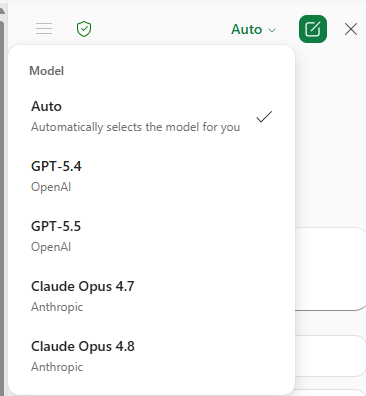
These options let you choose which model Copilot uses for the current editing session. Auto lets Copilot select a model for the task, while other available options let you choose a specific model when you want to compare results or try a different approach.
Claude is available through Microsoft 365 Copilot for users with the required license and supported experience. It is not a separate Claude website to use for university work, a separate Claude subscription to request, or an add-in to install.
Available model options may vary. For current Microsoft guidance, visit Choose your model when editing with Copilot in Excel. You can also read the Iowa article Claude is now available in Microsoft 365 Copilot.
Reviewing Copilot output
Copilot can help with Excel work, but its output still needs review. It can create results that look complete while still needing a closer check.
Before using Copilot-assisted output:
- Review formulas Copilot creates.
- Check that charts, PivotTables, summaries, and dashboards use the correct source data.
- Spot-check important values against the original workbook.
- Review generated text for accuracy, tone, and appropriateness.
- Use extra care with spreadsheets that include names, dates, budgets, policy language, health information, student information, or other sensitive data.
- Consider using a copy when the workbook is sensitive, complex, shared with others, or important to a business process.
If you use editing features, Copilot may make direct changes to the workbook. Review those changes before relying on the results or sharing the file.
Copilot can help you get started, but you are responsible for the final workbook and any decisions made from it.
Need Help?
Need Help?
If you have questions about how to get started or would like some advice on how AI can assist you with work tasks, please contact the Emerging Technologies Team.
We’re here to support your success with AI-powered tools at the University of Iowa!
For additional information on AI tools and AI guidelines here at the University of Iowa, check out the resources below: