Getting Started
Accessing Copilot in Outlook
Accessing Copilot in Outlook
Copilot Sidebar:
Copilot Location: You can find the Copilot icon at the end of the Home ribbon in the Outlook interface.

- Opening the Sidebar: Click the Copilot icon to launch the sidebar, where you can enter prompts, reference content, and access both suggested and saved prompts.
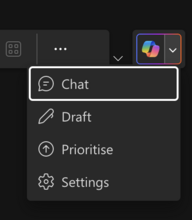
- Dropdown Options: Next to the Copilot icon, click the dropdown arrow to view additional features:
- Chat – Opens the Copilot sidebar for interactive prompting.
- Draft – Assists you in composing a new email with AI-generated content.
- Prioritize – Helps organize and prioritize your inbox by identifying important messages.
- Settings – Allows you to adjust Copilot preferences, including the option to disable Copilot for Outlook if needed.
Prompt Window and Prewritten Suggestions
Prompt Window and Prewritten Suggestions
The Copilot sidebar in Outlook includes a prompt window where you can type your questions or choose from curated suggestions to get started quickly.
- Prompt Window
Type your question or request in the prompt window to receive tailored responses.
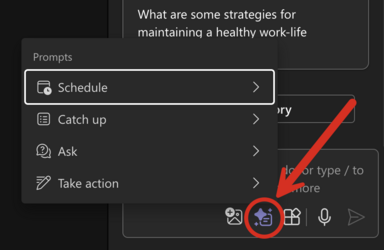
- View Prompts
Access a curated gallery of commonly used prompts by selecting the "View Prompts" option in the Copilot sidebar. This feature allows you to browse and choose from a variety of pre-written prompts tailored to different tasks–such as drafting emails, summarizing content, or managing your inbox–helping you get started quickly and effectively with Copilot.
Managing Content Preferences
Managing Content Preferences
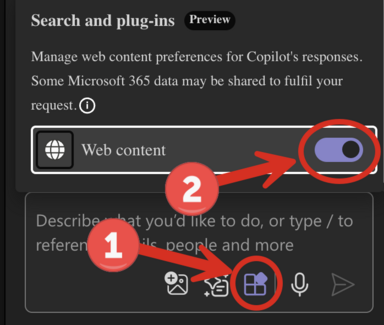
Manage Web Content Preferences
- Click the Search and plug-ins icon in Copilot.
- Use the Web content toggle to choose your preferred data source:
- Microsoft Enterprise Data only (gray):
Copilot will reference only content within your University of Iowa Microsoft account. - All Web Content + Microsoft Data (purple):
Copilot can access public web results in addition to enterprise data.
Using Inline Copilot in Outlook
Using Inline Copilot in Outlook
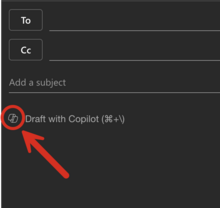
How to Access
- While composing an email, click the Copilot icon located on the left side of the message body to activate Inline Copilot.
- This will open a compact prompt window directly within your draft, allowing you to request real-time suggestions and content generation tailored to your email context.
Inline Copilot Response Options
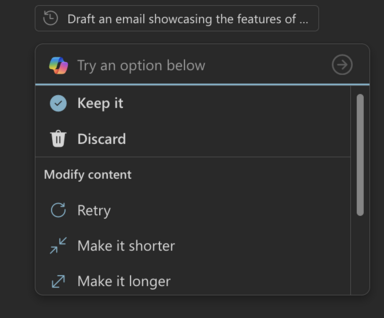
After you enter a prompt, Copilot will generate content along with several action options:
- Keep – Inserts the generated content into your email draft.
- Discard – Removes the suggested content.
- Retry – Regenerates the content using the same prompt.
- Make it shorter/longer – Adjusts the length of the content based on your preference.
- Change Tone – Modifies the tone to be more direct, casual, or formal.
- Suggestion Selector (left/right arrows) – Browse through alternative versions generated by Copilot.
Need Help?
Need Help?
If you have questions about how to get started or would like some advice on how AI can assist you with work tasks, please contact the AI Support Team.
We’re here to support your success with AI-powered tools at the University of Iowa!
AI Resources
For additional information on AI tools and AI guidelines here at the University of Iowa, check out the resources below: