One of the most effective ways to get better results from Microsoft Copilot Chat is to personalize it. Rather than starting from scratch every time you open a new chat, Copilot can learn how you like to work, communicate, and consume information through Custom Instructions and Memory features.
By spending just a few minutes setting up your preferences, you can reduce repetitive prompting, receive more relevant responses, and create a more consistent experience.
What are Custom Instructions?
Custom Instructions allow you to tell Copilot about your preferences and how you want responses formatted. Instead of repeatedly providing the same directions in every conversation, you can save them once, and Copilot will apply them automatically.
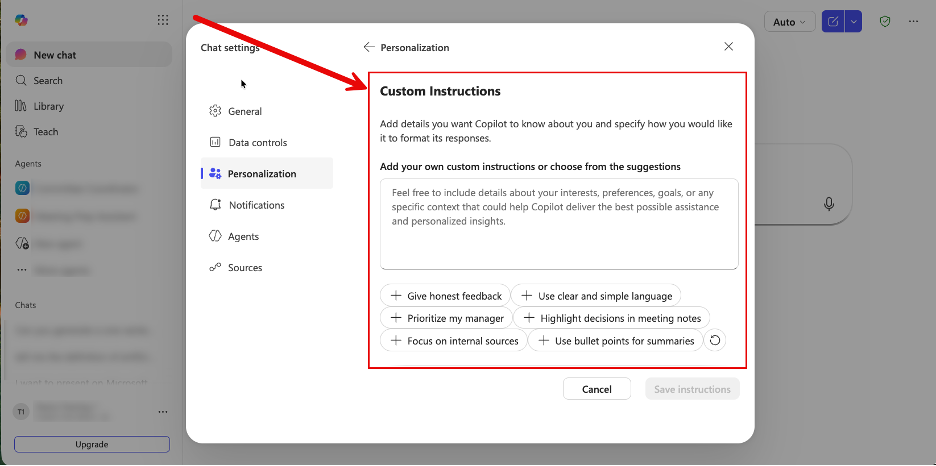
For example, you might tell Copilot:
- Use bullet points instead of long paragraphs.
- Keep responses concise and actionable.
- When explaining technical topics, avoid jargon and use plain language.
- Include step-by-step instructions whenever possible.
- Provide examples relevant to higher education.
- Do not use em dashes because I prefer simple punctuation.
Once saved, these preferences become part of your default Copilot experience.
What is a saved Copilot memory?
A saved Copilot memory helps Copilot remember useful details from previous conversations and your stated preferences, allowing responses to become more personalized over time. It can recall the memory and use that context to provide more relevant assistance in future interactions.
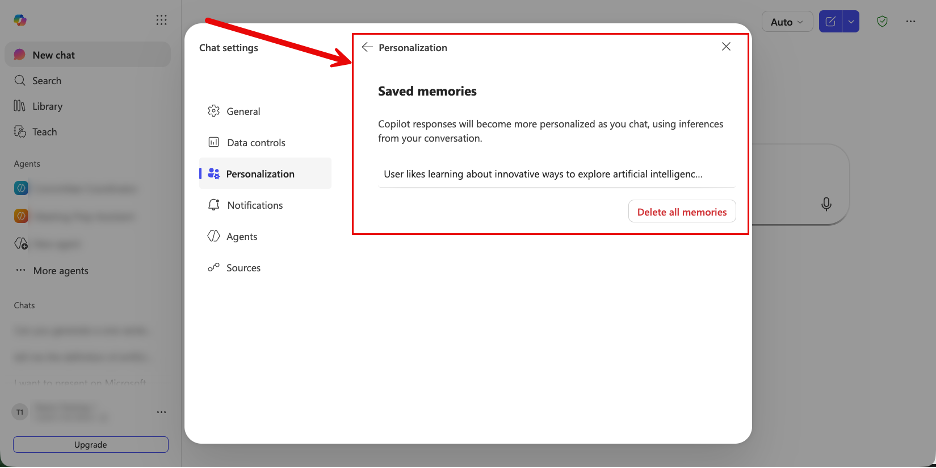
Please note: Saved memories are not the same as Copilot learning your preferences over time. A saved memory is a specific detail that Copilot has stored for future use, while personalization can also come from patterns and preferences identified through your previous interactions, such as your preferred tone, formatting style, or role. These personalization features are stored securely within Microsoft 365.
Think of it this way:
- Custom Instructions tell Copilot how you want it to respond.
- Saved Memory helps Copilot remember information that improves future conversations.
Why personalize Copilot?
Personalization helps eliminate repetitive prompting and makes Copilot more aligned with how you work. Consider these examples
Example 1: The busy manager
Instead of repeatedly typing: Summarize this meeting in bullet points and include action items.
You could add a custom instruction: When summarizing meetings, always provide key points, decisions, and action items in bullet format.
Every meeting summary becomes more consistent and requires fewer follow-up prompts.
Example 2: The researcher
You might tell Copilot: Include credible sources and suggest follow-up research questions whenever possible.
This can help streamline literature reviews, environmental scans, and project planning.
Example 3: The instructor
A faculty member could add: Provide examples that can be applied in higher education settings.
This helps generate more relevant lesson plans, activities, and course materials.
Example 4: The concise communicator
If you prefer shorter responses: Keep responses under 200 words unless I specifically request additional detail.
This can reduce information overload and make outputs easier to review.
Example 5: The formatting perfectionist
You might add: Do not include tables unless I request them because I prefer scannable bullet points or do not include lengthy introductions. Start with the answer.
These small preferences can make a significant difference in your day-to-day experience.
Ideas for your own custom instructions
Not sure where to start? Consider telling Copilot
About your role:
- I work in higher education.
- I regularly create training materials and FAQs.
- My audience is faculty and staff.
How you like information presented:
- Use headings and bullet points.
- Provide concise summaries first.
- Include actionable next steps.
What to avoid:
- Do not use overly technical language.
- Do not include marketing-style language.
- Do not repeat information unnecessarily.
Your writing preferences:
- Use a professional but approachable tone.
- Prioritize clarity over complexity.
- Write in plain language.
Get started
To configure personalization settings:
- Open Copilot Chat.
- Select Settings.
- Choose Personalization.
- Edit Custom Instructions and review your Memory settings.
Personalization is one of the simplest ways to improve your AI experience. A few thoughtful preferences can help Copilot become a more effective partner, reducing repetitive prompts and delivering responses that better match your needs and working style.
For more information, please see our How to Use Copilot Chat resource page.
The AI Hub is the main starting point for tools, training, guidance, events, and support. And if you want to stay up to date on what is happening with AI at the University of Iowa, subscribe to the AI at Iowa newsletter.