How to register a device to use UI-DeviceNet
To register a device to use UI-DeviceNet:
- Find the wireless MAC address of your gaming or entertainment device.
- Go to the UI-DeviceNet registration portal using your non-gaming or entertainment device that is connected to eduroam (wireless campus internet) or ResNet (wired internet in dorms).
Log in with your HawkID and password.
You will see the following form:
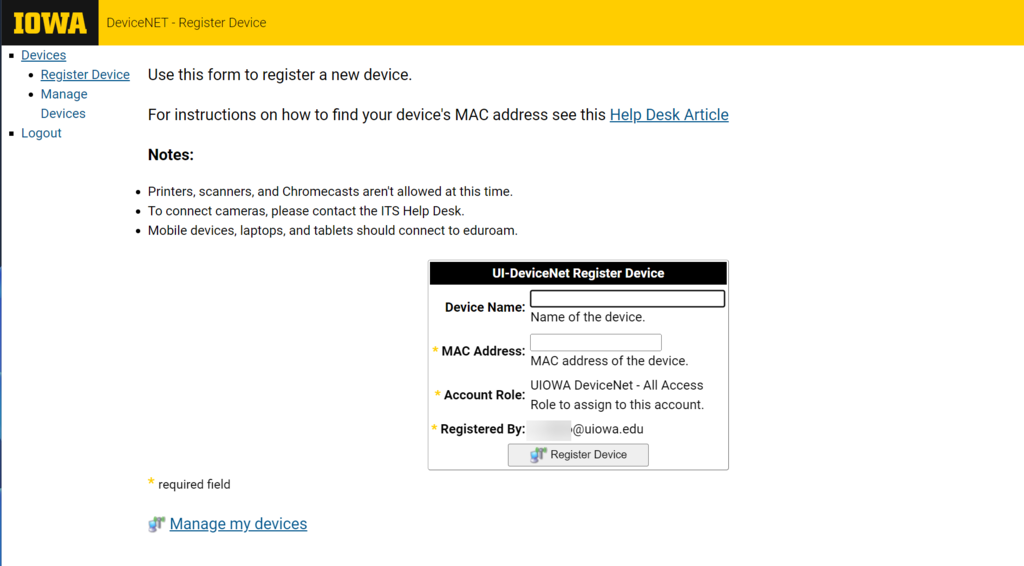
Complete the fields and click "Register Device".
To finish the connection:
- Turn off your gaming or entertainment device and leave it off for at least 5 minutes to clear any cached information.
- After 5 minutes have elapsed, turn on your device and connect it to the network "UI-DeviceNet".
- When prompted for a password enter "UI-DeviceNet" (the password is case sensitive).
- The device should connect.
Note: After registering and connecting to UI-DeviceNet, some devices will display setup instructions that require your phone or mobile device to be connected to the same Wi-Fi network as the device you're setting up. Because UI-DeviceNet is designed for devices that cannot use the standard campus wireless network, this setup method will not work. If your device offers a way to bypass the mobile device setup step, try that first. If the setup cannot be completed without a phone on the same network, the device may require a different connection method, such as ResNet.
If you need to update your device's information please see How to manage your devices.
If you need to remove your device registration for troubleshooting purposes please see How to remove a device from UI-DeviceNet.
If you have questions please contact the ITS Help Desk.
How to manage your devices
To manage devices you have registered to connect to UI-DeviceNet:
- Go to the UI-DeviceNet registration portal
Enter your HawkID and password
You will see the following form:
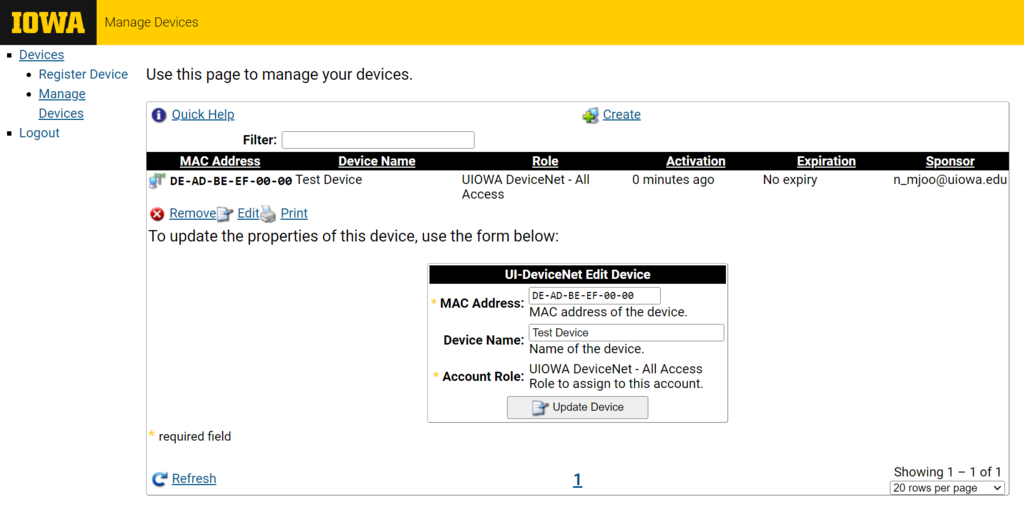
In the left menu click "Manage Devices". You will see a list of your registered devices.
- Select the device you want to edit.
- Click "Edit".
- Make the desired changes and click "Update Device".
If you need to edit the information for another device click on the device in the list and follow the same instructions.
When finished click "Logout" in the left menu.
Note: Devices that have not connected to UI-DeviceNet for an extended period (approximately six months) may need to be re-registered before they can reconnect. If you update or re-register a device, completely power it off for at least 5 minutes before attempting to reconnect. This allows old network information to clear from the device.
If you have questions please contact the ITS Help Desk.
How to remove a device from UI-DeviceNet
To remove a device registered to connect to UI-DeviceNet:
- Go to the UI-DeviceNet registration portal
Enter your HawkID and password
You will see the following form:
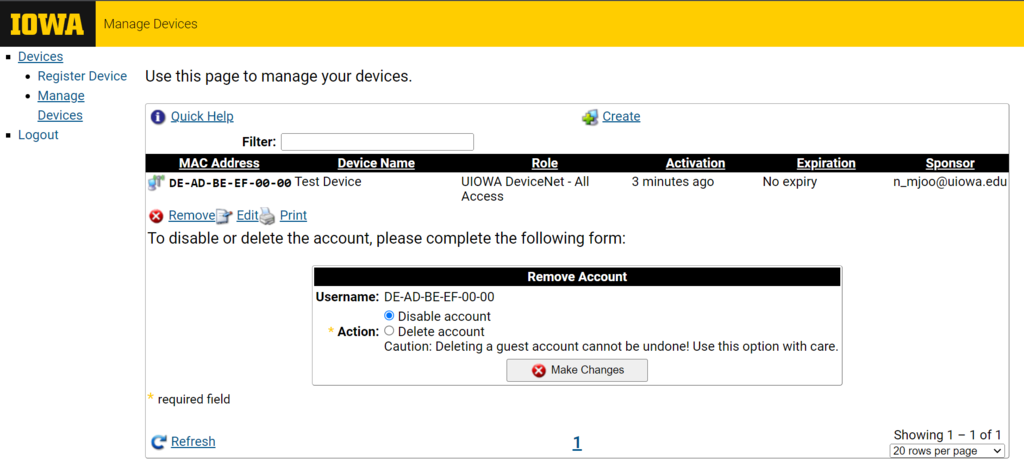
In the left menu, click "Manage Devices". You will see a list of devices registered.
- Select the device and click "Remove"
If you need to remove another device, click on the device in the list and follow the same instructions.
When finished click "Logout" in the left menu.
If you have questions please contact the ITS Help Desk.