ChatGPT Edu is an AI-powered assistant available to faculty and staff. It helps streamline everyday tasks such as creating project plans, drafting documentation, writing emails, and preparing meeting content. The University of Iowa's ChatGPT Edu workspace has enterprise data protection. Visit our AI Tools page to learn more about the types of data that can be used with this tool. 

Please Note: ChatGPT Edu is most compatible with Google Chrome and Microsoft Edge. Other browsers may offer limited functionality.

Users of the ChatGPT Edu desktop application should install and use the Classic version of the app, available on the ChatGPT download page. OpenAI is currently rolling out updates to the desktop application incrementally, and some users may not yet have access to the latest version. Until the rollout is complete, we recommend continuing to use the ChatGPT Edu Classic desktop application.

Upcoming Change: Custom GPTs will be retired on Dec. 11, 2026. To keep using your Custom GPTs, move them to Plugins by Dec. 10, 2026. See How do I move my Custom GPT to a Plugin? below.

This support article outlines:

  • Key features on ChatGPT Edu
  • Frequently Asked Questions on ChatGPT Edu include:
    • Privacy and Data Protection with ChatGPT Edu
    • How to Login to ChatGPT Edu via the Web Portal
    • Overview and Highlights of ChatGPT Edu Interface
    • Information on Plugins and sharing options
    • Feature availability in ChatGPT Edu

Key Features on ChatGPT Edu

  • Advanced Tools
    • Data analysis, web browsing, and file uploads

    • The ability to build Plugins, customized AI assistants, and share them with UI colleagues who have a ChatGPT Edu license

    • Limited image generation and Deep Research capabilities

    • Skills: automated, repeatable workflows designed for specific business tasks

    • Substantially higher message limits than ChatGPT Free

    • Improved language capabilities across quality and speed, with over 50 languages supported
Do I have data protection with ChatGPT Edu?

Yes. You own and control your data within the University of Iowa ChatGPT Enterprise. OpenAI does not train on your data or conversations, and their models don’t learn from your usage. 

ChatGPT Edu allows for Public and University-Internal data. Restricted-Critical is permitted for use with consultation from research services or ITS-ISPO.

ChatGPT is currently not HIPAA compliant and is not approved for use with patient data. Please contact the Joint Office for Compliance with any questions at 319-384-8282 or [email protected].

How do I know if I have a license?

To receive a license for ChatGPT Edu, you will need to connect with your IT Lead to purchase. The order form should be completed by an IT Director or designee.  Contact your ETS personnel or IT Director to request this software.  Approval for purchase is required.

Once received, your license will be automatically provisioned and you will see an email from ChatGPT/OpenAI inviting you to join our workspace.

How do I login into my ChatGPT Edu account?

How To Login:

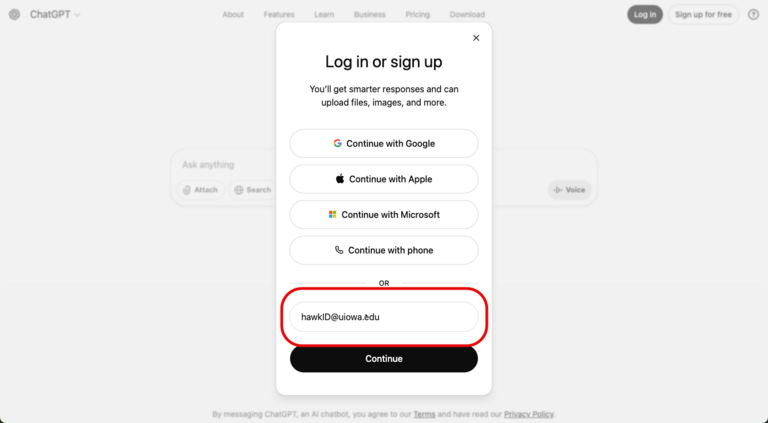
  1. Navigate to https://chatgpt.com/ in a browser.
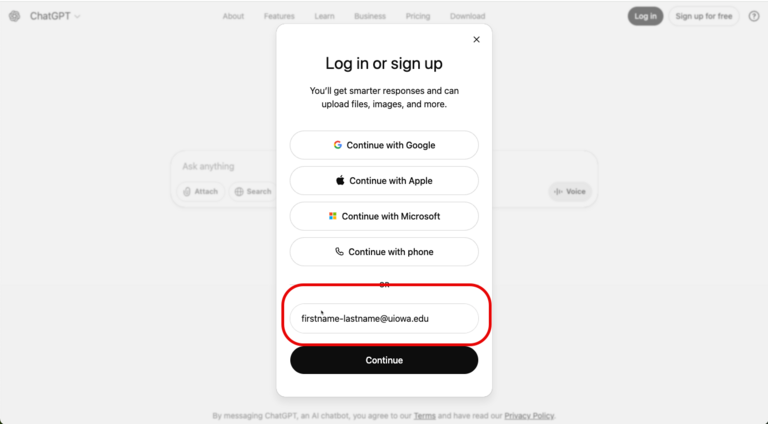
  2. To login into your ChatGPT Edu account, you must use your [email protected] (ex: [email protected]). 
Screenshot of hawkID in ChatGPT Edu login

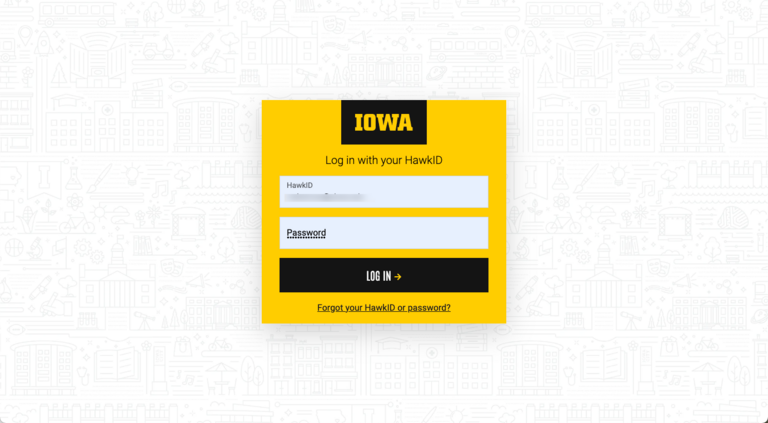
3. You will then be prompted through SSO authentication. Enter your hawkID and password.

SSO for ChatGPT Edu

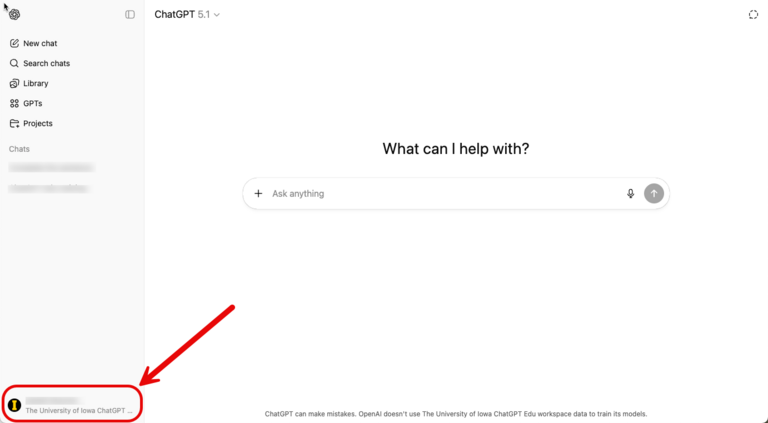
4. Once in, ensure you are on the University of Iowa ChatGPT Edu workspace account by locating the UI logo on the bottom left side of your interface. 

Screenshot of ChatGPT Edu interface with UI Logo


Note: If you signed up with your [email protected] initially before this service, you will be forced to merge or export your data.

How To Login in With An Existing Account:

If you used your email alias of [email protected] (ex: [email protected]), you can still keep this account and you will not be able to merge your data with your University of Iowa ChatGPT Edu workspace account. 

Note: if you know longer wish to keep your existing account (paid or free), you must work with the vendor to cancel it. It will not be automatically cancelled.

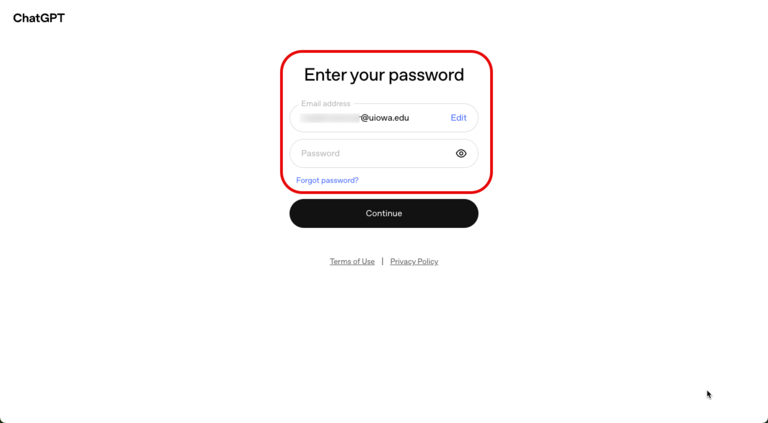
  1. Login with your [email protected] (ex: [email protected]). 
Screenshot of ChatGPT Edu Personal Account Login

2. You will need to enter your original password used for that account and will not see SSO authentication. This account will not have enterprise data protection and is not affiliated with the University of Iowa ChatGPT Edu workspace.

Screenshot of ChatGPT Edu Interface Personal

What is a Custom GPT in ChatGPT Edu?

Upcoming Change: Custom GPTs will be retired on Dec. 11, 2026. To keep using your Custom GPTs, move them to Plugins by Dec. 10, 2026. See How do I move my Custom GPT to a Plugin? below.

A Custom GPT is a personalized version of ChatGPT Edu designed to help with specific tasks or questions by following instructions and using information you choose. It’s essentially a focused AI assistant.

A Custom GPT is similar to an agent in Microsoft Copilot, allowing you to define how it behaves, what it helps with, and what information it uses. It provides a reusable assistant for specific needs instead of starting from a blank chat each time. 

Are Custom GPTs going away?

Yes. Custom GPTs in ChatGPT Edu are retiring on Dec. 11, 2026. If you want to keep using a Custom GPT you created, you will need to move it to a Plugin. Please complete this by Dec. 10, 2026.

How do I move my Custom GPT to a Plugin?

  1. Sign in to your University of Iowa ChatGPT Edu account.
  2. Open your existing Custom GPTs.
  3. Use the available option to migrate or convert each Custom GPT to a Plugin.
  4. Review and test your migrated Plugins to make sure they work as expected.

Tip: If your Custom GPT used uploaded reference documents, try a few common questions and confirm the Plugin responds the way you expect.

How do I create a new Plugin?

You can build customized AI assistants with Plugin Creator, much like you created Custom GPTs before.

  1. In ChatGPT Edu, go to Settings → Plugins, or open the Plugin Directory from the sidebar.
  2. Search for Plugin Creator and select Connect or Install, as available.
  3. Open Plugin Creator and describe what you'd like your new Plugin to do.
  4. Follow the prompts to create, test and save your Plugin.

Can I share a Plugin?

Yes. Plugin creation and sharing are already enabled for University of Iowa ChatGPT Edu users. You can share your Plugins with UI colleagues who also have a ChatGPT Edu license. The same data classification rules apply to Plugins as to the rest of ChatGPT Edu.

What are Skills in ChatGPT Edu and how can I create and use them?

What are Skills in ChatGPT Edu? 

Skills in ChatGPT Edu are reusable instructions that define how ChatGPT should respond to a specific type of task. Instead of rewriting detailed prompts each time, you can create a Skill once and apply it whenever you need consistent output like summarizing research articles, drafting emails, or generating lesson materials. 

Skills help you: 

  • Save time by avoiding repetitive prompting 

  • Stay consistent in tone, style, and format 

  • Standardize workflows for teaching, research, or administrative tasks 

  • Reduce prompt-writing effort, especially for complex tasks 

They are especially useful if you find yourself giving ChatGPT the same instructions repeatedly. 

Tip: Start by turning a prompt you already use frequently into a Skill and refine it over time as you see how it performs. 

What are some example use cases? 

Teaching and instruction 

  • Generate discussion questions from readings 

  • Create rubrics or assignment prompts 

  • Simplify complex concepts for students 

Research 

  • Summarize articles or notes 

  • Extract key themes from qualitative data 

  • Draft lit review outlines 

Administrative work 

  • Draft emails or reports 

  • Create meeting summaries 

  • Standardize documentation 

For more information, please see: Skills in ChatGPT and Using skills Open AI.

How do I create a Skill? 

Follow these general steps in ChatGPT Edu: 

  1. Open the Skills panel

  2. Look for the “Skills” option in the ChatGPT interface. 

  3. Select + New Skill. You'll see three ways to create a Skill: 

    1. Create with Chat – Build your Skill through a guided conversation with ChatGPT. 

    2. Create with Editor – Create your Skill by configuring its settings manually in the editor. 

    3. Upload from your computer – Import a Skill from a file stored on your computer. 

  4. Give your Skill a name

    1. Make it specific and descriptive (e.g., “Research-Article-Summarization”)

    2. Write clear instructions and describe exactly what you want the Skill in ChatGPT Edu to do 

      1. You might include information like: 

        1. Role (“You are a teaching assistant…”)

        2. Task (“Summarize the text…”)

        3. Output format (“Provide bullet points and key takeaways…”)

        4. Tone (“Use plain language appropriate for undergraduates…”) 

  5. Save the Skill 

  6. Use the Skill in the main interface 

  7. Select it in the "+" option when starting a new chat, then provide your content or question 

If you have further questions on creating a Skill, please see our Skills Reference Guide.

How do Skills differ from Plugins? 

Skills are useful for repeated workflows because they help save time, reduce prompt-writing effort, and ensure consistency across tasks. They work best for focused, repeatable use cases like teaching support, research summarization, or administrative writing. 

Compared to plugins, skills are quicker to set up and easier to maintain. While plugins support more advanced customization, tools, and sharing, skills are a lightweight option for personal productivity and everyday academic or professional tasks. 

Feature
Skills
Plugins
Set up complexity 

Simple 

More advanced 

Best for 

Reusable prompts/workflows 

Fully customized AI assistants 

Sharing 

More individual-based 

Can be shared within UI ChatGPT Edu

Tools and Integrations 

Limited 

Can include knowledge files, tools 

Maintenance 

Minimal 

Requires more set-up and upkeep 

How does ChatGPT Edu compare to other ChatGPT services?

ChatGPT capabilities as per different subscription:

Note: these capabilities change frequently and may not be up-to-date. Please refer to this page: https://chatgpt.com/pricing

Feature / Capability 

ChatGPT 

ChatGPT Plus 

ChatGPT Pro 

ChatGPT Edu 
Enterprise License 

Cost 

Free 

$20 per month per user 

$200 per month per user 

$156 per user per year 

Data Used for Model Training? 

Yes (opt-out available) 

Yes (opt-out available) 

Yes (opt-out available) 

No; Enterprise data protections apply 

Integration with University Systems 

Not Available 

Not Available 

Not Available 

Not Available–potential future integration 

Usage Limits 

Basic limits 

Higher limits 

Highest limits 

Unlimited (for Chat only)

Available Models

(Model availability varies by subscription and workspace configuration and may change over time.) 

*We do our best to keep this page up to date. If you have questions about what is currently available in the University of Iowa ChatGPT Edu workspace, contact the Emerging Technologies team.


  • Access: GPT-6 Luna, GPT-5 Thinking Mini, GPT-5.6 Terra
  • Access: GPT-6.1 Sol, GPT-6 Astra, Sol, Luna, GPT-5.6 Sol, Terra
  • Expanded access: GPT-5 Thinking Mini
     
  • Expanded access: GPT-6.1 Sol, GPT-6 Astra, Sol, Luna, GPT-5.6 Sol Pro
  • Unlimited access: GPT-5.6 Sol, GPT-5.6 Terra, Luna, GPT-5 Thinking Mini
     
  • Access: GPT-6.1 Sol, Terra, GPT-6 Sol, Luna, GPT-5.6 Sol, Terra, Luna 

Response Time 

Slower Response Times, with Priority Given to Other Account Types 

Fast 

Fast 

Fast 

Plugins

Available (use only, basic access) 

Available (create & use) 

Available (create & use) 

Available

Memory 

Available 

Available 

Available 

Available 

Canvas 

Available 

Available 

Available 

Available 

File Uploads 

Available (limited) 

Available 

Available 

Available 

Data Analysis 

Available (limited) 

Available 

Available 

Available 

Image Generation  

Available (limited) 

Available 

Available 

Available (limited)

Deep ResearchNot AvailableAvailableAvailableAvailable (limited)

Voice Mode 

Available (limited) 

Available (standard and advanced) 

Available (unlimited) 

Not available 

Web Search 

Available 

Available 

Available 

Available 

Sora Video Generation 

Not Available 

Available (limited) 

Available (extended access) 

Not available 

Projects & Tasks 

Not Available 

Available 

Available 

Available 

SkillsNot AvailableNot AvailableNot AvailableAvailable

Study Mode 

Available 

Available 

Available 

Available 

What features are available in ChatGPT Edu?

ChatGPT Edu includes a range of features to support teaching, learning, and administrative work. Feature availability may change as new capabilities are tested and released. 

Available

  • Custom GPTs (transitioning to Plugins)
  • Codex (limited access)
  • Plugins
  • Skills
  • Memory
  • File Uploads
  • Web Search
  • Data Analysis
  • Study Mode
  • Projects
  • Canvas
  • Scheduled Tasks/Prompts

Available with Limits:

  • Image Generation: Up to 3 images per rolling 24-hour period
  • Deep Research: Up to 5 interactions per rolling 24-hour period

ChatGPT Edu will notify you when you have reached these limits.

Not Currently Available: 

  • Agent Mode
  • Agents
  • Voice
  • ChatGPT Work

What is Codex in ChatGPT Edu and who can use it?

Codex is OpenAI's AI coding agent. It can work through coding tasks with you, such as writing and explaining code, finding and fixing bugs, and reviewing changes. It is enabled for everyone with a University of Iowa ChatGPT Edu license. It is offered on an introductory basis for light use.

How long are ChatGPT Edu conversations saved?

ChatGPT Edu conversations will be retained for six months from their most recent interaction date. Opening a chat refreshes its retention period and moves it to the top of your conversation history. Chats that are not interacted within six months will be automatically removed from the interface. Any enabled memory features will be retained separately from chat history. Uploaded files and images will have the same retention timeline as the chat in which they were shared.

The university implemented an AI tool content retention policy for Microsoft Copilot and ChatGPT EDU in August 2026.

  • Microsoft 365 Copilot, Copilot Chat, and Chat GPT Edu retention policy
    • Chat history in Microsoft 365 Copilot and Copilot Chat will be retained for six months.
    • After six months, chat conversations are automatically deleted in accordance with the university's data retention policy. Users do not need to take any action.
  • What this means for you
    • Your Copilot and Chat GPT chat history will be available for up to six months.
    • Conversations older than six months will be automatically removed and cannot be recovered.
    • If a conversation contains information you want to reference in the future, save it outside of Copilot before the retention period expires.
    • This policy includes chats that take place in an agent.
  • Why this policy exists
    • The six-month retention period helps the university:
      • Reduce the amount of stored institutional data by retaining the chat information for a limited amount of time or as long as there is a legitimate need.
      • Balance user productivity with responsible data management.
      • Reduce the risk of referencing AI-generated information that is out of date.

What happens to my chats and data if my ChatGPT Edu license is removed?

If your ChatGPT Edu license is removed, your chats, projects, and other associated data will be retained for six months under the University of Iowa's data retention policy.

If your access is restored within this six-month period using the same University of Iowa email address ([email protected]), your previously saved chats and projects will be restored.

After six months, your data and chats will be automatically deleted and cannot be recovered.

How do I know if ChatGPT Edu is right for me?

Please refer to our AI Tool Comparison Chart, which highlights all University of Iowa Enterprise AI tools currently available on campus, including their features and comparisons. 

Additionally, check out our role-based guide to help you choose the right tool for your needs.

Who can help me with Codex or moving to Plugins?

For help moving your Custom GPTs, creating new Plugins or getting started with Codex, contact the Emerging Technologies Team through the ITS contact form. For sign-in or access issues, contact the ITS Help Desk at 319-384-4357 or through online chat.

Last updated
Article number
10946