Signatures, templates and stationery files are all commonly used features of Outlook. They can make composing messages easier using standard text for frequently sent messages and change the appearance of your background when sending a message.
Signatures, templates and stationery files are all commonly used features of Outlook. They can make composing messages easier using standard text for frequently sent messages and change the appearance of your background when sending a message.
Using a signature can make all of your messages consistent with how you sign them and provides the recipient with your contact information.
You may also want to use signatures if you repeatedly send the same message text. A signature can be a template for messages you send so you don't have to retype the same text over and over.
To create an institutional signature showing your affiliation with the University of Iowa, see Email Signatures for information.
Creating a New Signature
Outlook for Windows (Classic)
Sending a Message Using a Signature
Outlook for Windows (Classic)
See Create and add a signature to messages for more information.
Using a signature can make all of your messages consistent with how you sign them and provides the recipient with your contact information.
You may also want to use signatures if you repeatedly send the same message text. A signature can be a template for messages you send so you don't have to retype the same text over and over.
To create an institutional signature showing your affiliation with the University of Iowa, see Email Signatures for information.
Create a Signature
Outlook for Windows (New) and Outlook on the web (OWA)
Outlook for Mac (New and Legacy)
Use a Signature Automatically
Outlook for Windows (New) and Outlook on the web (OWA)
After creating the signature:
Outlook for Mac (New and Legacy)
After creating the signature:
Sending a Message Using a Signature
Outlook for Windows
Click the Send button to send the message.
Outlook for Mac
Click the Send button.
Outlook on the web
Click the Send button.
See Create and add a signature to messages for more information.
If you find that you repeatedly send the same message, you may want to create a new template. You can create a template containing any information which will remain constant, save the template, and then use the template to send a new message.
Creating a Template
Outlook for Windows (Classic)
Using a Template You've Created to Send a Message
Outlook for Windows (Classic)
For more information see:
Create an email message template
Automate common or repetitive tasks with Quick steps in Outlook
If you find that you repeatedly send the same message, you may want to create a new template. You can create a template containing any information which will remain constant, save the template, and then use the template to send a new message.
Mail Templates (Best for full emails)
Use this when you want to save an entire message, including the subject line, formatting, recipients, and attachments.
Create a template
Use a template
Manage templates
View, edit, or delete saved templates.
New Outlook - My Templates (Best for text snippets)
Use this for frequently used paragraphs, greetings, or standard responses. It stores reusable text only.
Create a text template
Insert a text template
Common Use Cases
Stationery in Outlook is designed more for creating a "wallpaper background" for your messages. Keep in mind that when you create a message using stationery, it creates a larger message that is may be unreadable by some email applications.
Creating a Stationery File
Outlook for Windows (Classic)
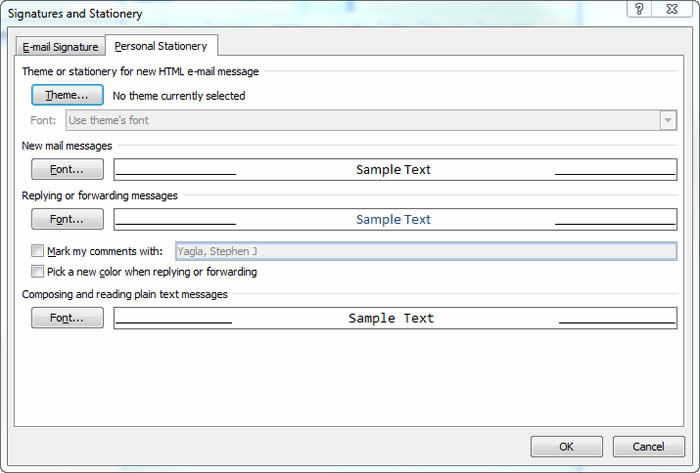
This stationery file will be the default for new HTML messages.
Use a one-time stationery file to send a message
Outlook for Windows (Classic)
For more information see: