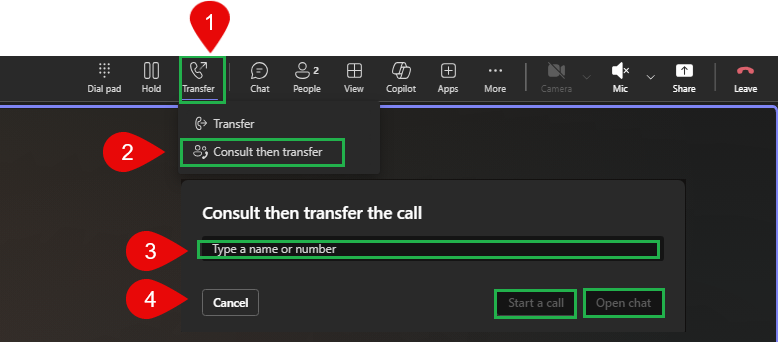
How to make a call on behalf of a Call Queue
- Click on Calls on the left side
- Type in the phone number you want to call (all 10 digits)
- Next to the Call button, click the drop down arrow.
- You will see Call as myself or Call as (name of your Call Queue)
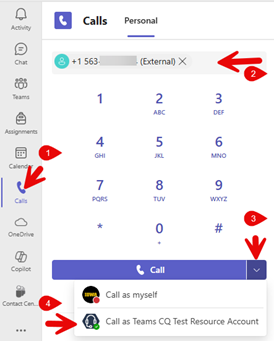
How to opt in and out of a Call Queue
Not all Call Queues have the option to opt in or out. If you do, follow these steps:
- Click the 3 dots in the upper right corner
Click settings

- Click Calls on the left side
- Your Call Queues will appear at the top. Click on the Call Queue you want to opt in or out of
- Click the toggle to turn on or off
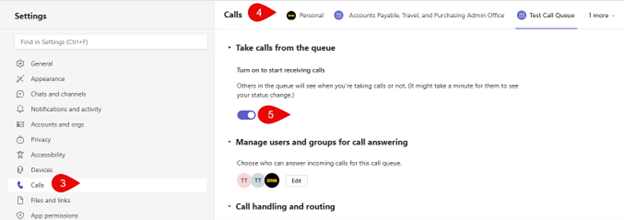
How to add Call Forwarding
- Click the 3 dots in the upper right corner
Click on Settings
- Click on Calls on the left side
- Under the Personal tab at the top, you will see Call Handling and Forwarding below
- Click the toggle button to turn on or off Call Forwarding
- When turned on, you then can Choose how all your calls will be forwarded
- Default will be Forward to Voicemail
- If you choose to Forward to a new number or contact, put in the full 10 digit number
How to add a Delegate for Teams calls
- Click the 3 dots in the upper right corner
Click on Settings
- Click on Calls on the left side
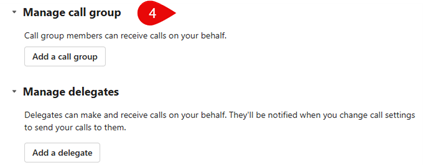
- Find section called Manage Call group or Manage Delegates.
- Manage Call Group
- Add a call group member - Type either hawkid or name
- After adding members, on the right side, you can click on Ring: and choose Everyone at once or In order below
- Click Calls at the top and it will bring you back to your settings
- Manage Delegates
- Click on Add a delegate
- Type either hawkid or name of person
- You will be given options of what you can grant the user for you
- Manage Call Group
How to sign into my phone with Teams
After you have been told that your phone is ready to sign in, follow the steps on your phone's screen
CCX
Step 1 on the screen says to enter the link provided on your Computer (https://microsoft.com/devicelogin) OPEN THE BROWSER IN INCOGNITO MODE
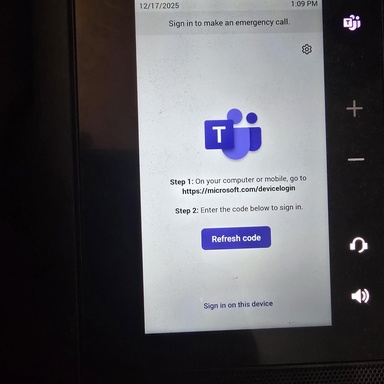
- Sign in with your hawkid@uiowa.edu and password
- On your Computer screen, it will ask for a Code. Look on the screen on your phone and enter the code provided (Step 2).
- Click on Next or Pair
- This will reboot your phone. It may reboot it a few times. Please give it time to finish
VVX
Click on Sign In button in the bottom left hand corner of your phone

- Type the url on the screen on your computer (https://aka.ms/siplogin)
- NOTE: OPEN BROWSER IN INCOGNITO mode first before entering the url
- Sign in with your hawkid@uiowa.edu and hawkid password
You will get the following screen asking for Enter pair code to add a device

Look back on your phone and enter the Pair Code shown on the phone screen, onto the computer and click Pair
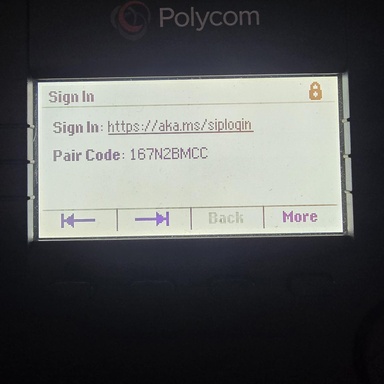
- Your phone will reboot. It may reboot a few times so give it time to complete.
How can I put a caller on Hold a second time?
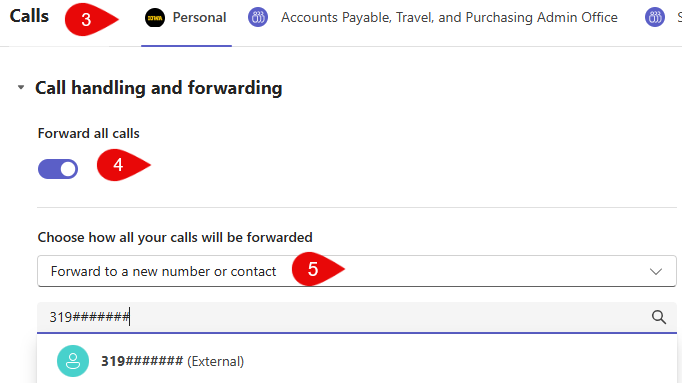
If you are in a situation where the Hold button is grayed out and you need to step away from the audio, you can use the Consult then transfer feature as a secondary hold:
- Click the Transfer button
- Select Consult then transfer
- You can Click Cancel and the caller stays on hold until you click the Resume button
- You can type a name in the box or just leave it blank. When ready to talk to caller, click Cancel and then Resume.