Microsoft Voicemail is a service available for Microsoft Teams enterprise voice (telephone) users. Voicemail messages are delivered to your Outlook inbox and include an audio file with the contents of the message as well as a text transcription.
Review and Delete Voicemail Messages
Review and Delete Voicemail Messages
There are two ways to check your voicemail with Teams including:
- Reviewing messages in your Outlook inbox
- Review messages in your Teams client
Detailed instructions for each option are discussed below:
Checking your Voicemail from Outlook
Voicemails will appear in your inbox as emails from the inbound caller. All voicemail will be sent to your email inbox as a media file and an attempt will be made to transcribe the message. Click either of the Play buttons and ensure that you have a private audio device such as earbuds or a USB headset plugged in to your computer.
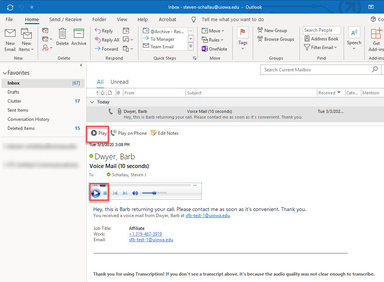
Deleting Voicemail from Outlook
Since voicemail messages are delivered to Outlook, they can be handled as you would any other email message. Select the voicemail message you wish to delete and then press the Delete key to remove the message. Voicemail messages deleted from Outlook are automatically removed from your Teams client.
Check your Voicemail from the local Teams Client
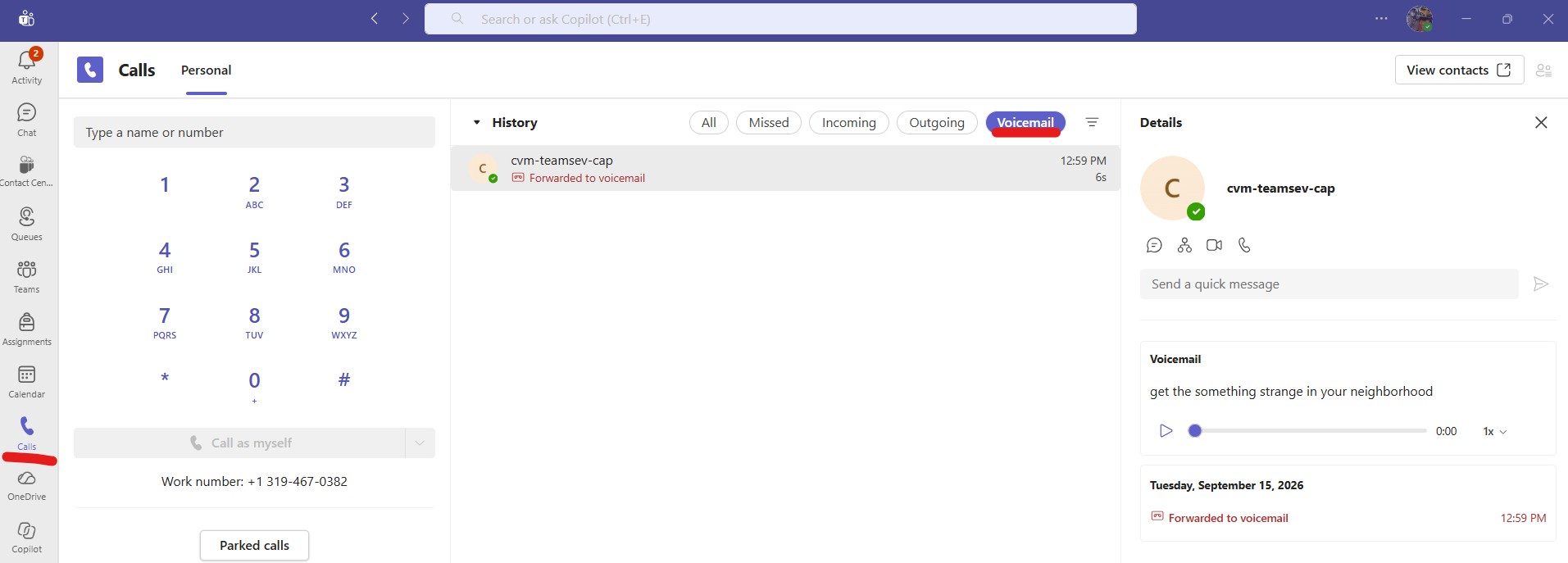
Navigate to the calls tab on the left side menu. From here you will see multiple filters in your call history. There is a specific tab for Voicemail. You can listen to the message on the right hand menu.
Deleting a Voicemail Message local Teams Client
Right-click on the voicemail message you want to delete and then select Delete Item. Voicemail messages deleted from your Teams client will automatically be deleted from Outlook.
Record a Standard and Away Voicemail Greeting
Record a Standard and Away Voicemail Greeting
Record & Save a Standard and an Away Voicemail Greeting
Microsoft Voicemail provides users with the ability to create two greetings; a standard greeting and an away greeting. These greetings can be created using the local Teams client. Following are detailed instruction:
Note: these greetings are NOT tied to your Outlook Out-of-Office auto reply or to your Free/Busy/Out-of-Office Outlook calendar information.
To record or change your voicemail greeting using the local Teams Client
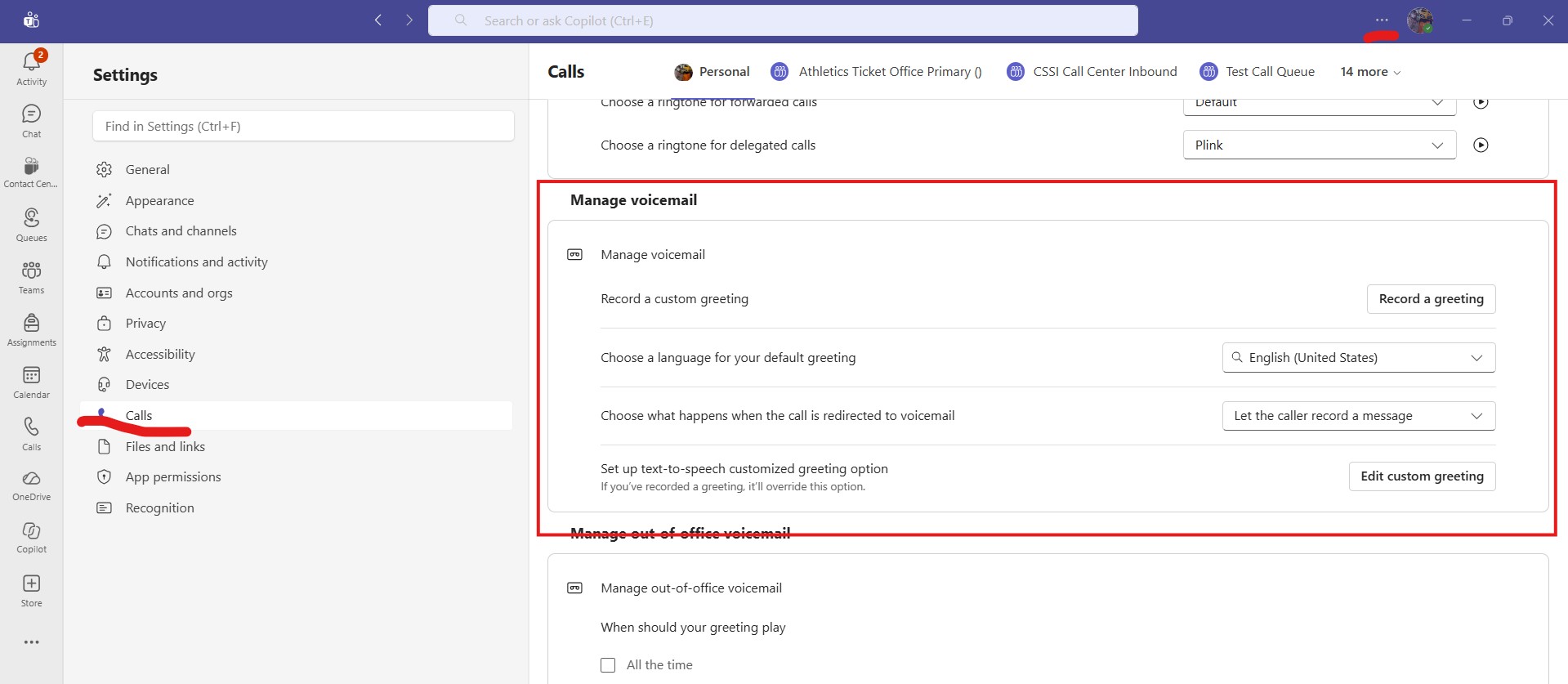
You'll want to navigate to the Settings on Teams (this is done by clicking the ellipses on the top right), and then go to the Calls section. From there you will find both standard voicemail and voicemail messages for when you're out of office. You'll note you have the option of either recording a message or using text-to-speech. Important note: any recorded messages will supersede any text-to-speech message. If you want to use text-to-speech, you'll need to make sure your recorded messages is deleted (this can be done in the voicemail options upon hitting "Record a message").
Voicemail Transcription Feature
Voicemail Transcription Feature
What is the preview message feature?
This feature uses "speech to text" technology to transcribe the content of each voicemail message into text. The preview is provided to give you a clue as to the content of the message, and particularly the urgency, which helps you to prioritize your response. For example, if you are in a meeting and can view messages but not immediately listen to them, you can respond accordingly. Later, you can listen to the message to hear the actual content. Best practice is to always listen to the message to hear the actual content.
Is the speech to text transcription accurate?
The current version of speech to text transcription is significantly improved over prior versions and therefore transcriptions are much more accurate. Speech to text translation is much more difficult than text to speech, given the many variables that it has to overcome. There are a number of factors that contribute to how well the speech is transcribed, from the audio quality of the recording to the speech itself. Low volume or interference on the line can affect it, as well as any accents, mannerisms, or enunciation elements of the person speaking.
Changing a Service Account Voicemail Greeting
Changing a Service Account Voicemail Greeting
If for whatever reason a voicemail message needs to be changed for one of our service accounts (tel-319#######@uiowa.edu), then you'll need to reach out to the ITS Unified Communications team via a Halo ticket to have it updated. As these are departmental lines and not personal, we ask that we keep in line with the institution's initiative to keep as ADA compliant as possible and use text-to-speech where applicable.
Last updated
Article number
5776